To set up an SFTP server on AlmaLinux 10, configure the SSH service to allow secure file transfer using SFTP with restricted user access.
Step 1 : Verify that the SSH daemon is installed and running.
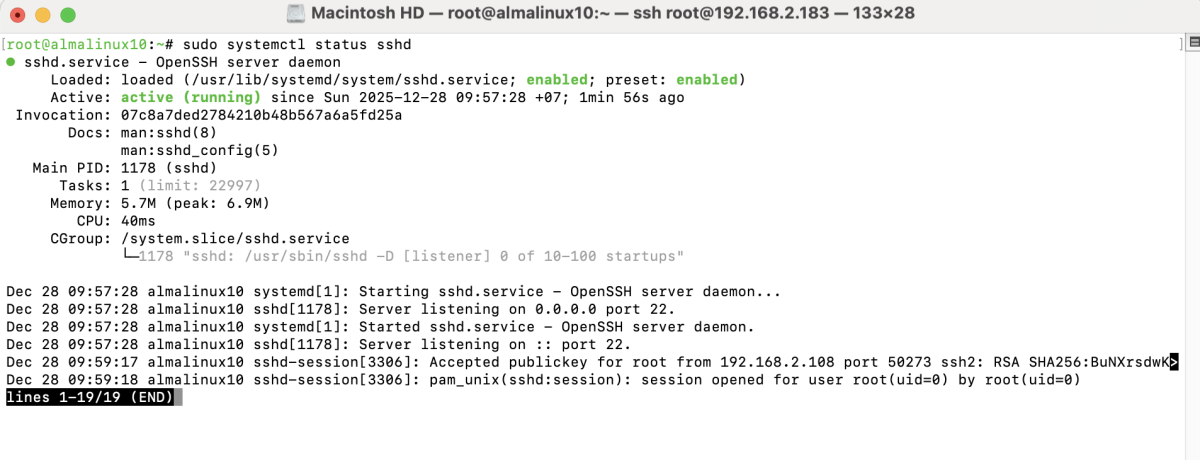
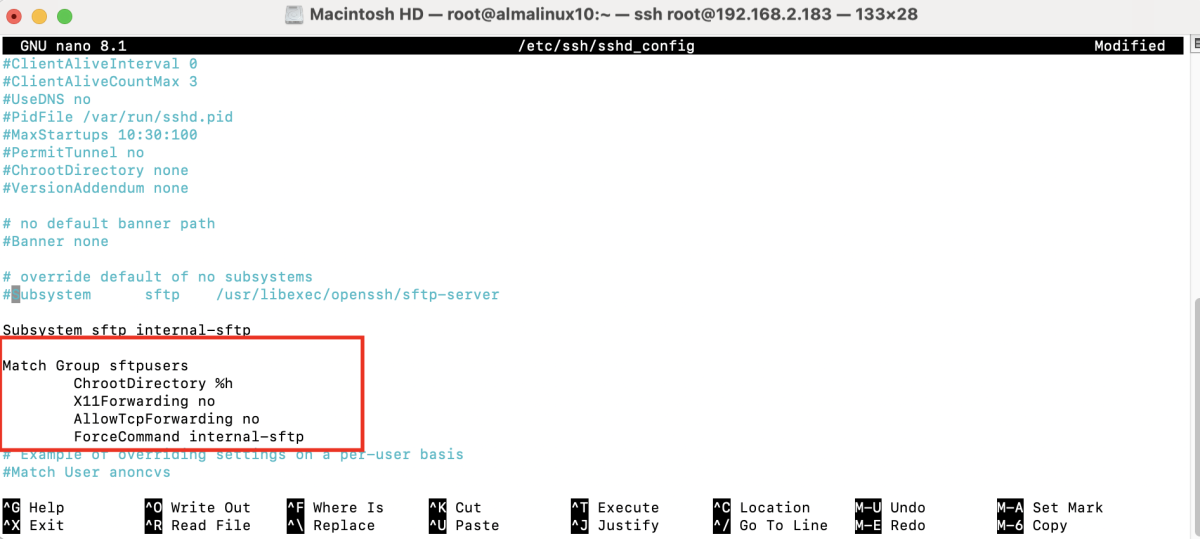
Step 2 : Open the SSH configuration file:
Add or update the following SFTP configuration:
Step 3 : If you want users to log in using a password, make sure the following line is set:
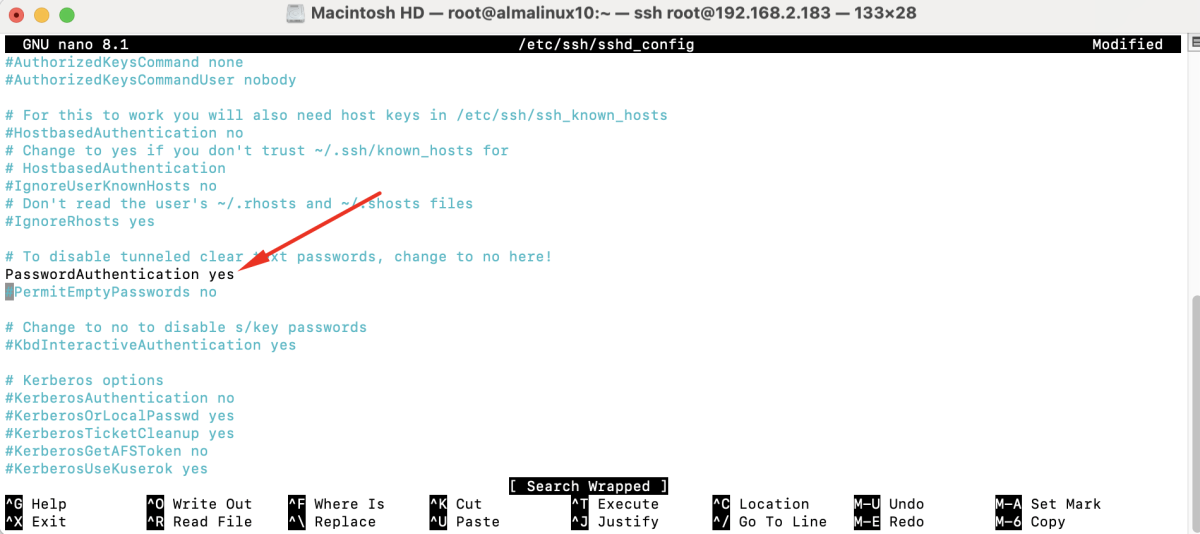
Save and close the file.
Step 4 : Apply the configuration changes.

Step 5 : Create a group for SFTP users.

Step 6 : Create a new user for SFTP access.

Step 7 : Set a password for the SFTP user.

Step 8 : Add the user to the SFTP group.

Step 9 : Set correct ownership and permissions for the SFTP user's home directory.

Step 10 : Restart SSH to ensure all settings are applied.

Step 11 : Test the SFTP Connection
- Open an SFTP client such as FileZilla.
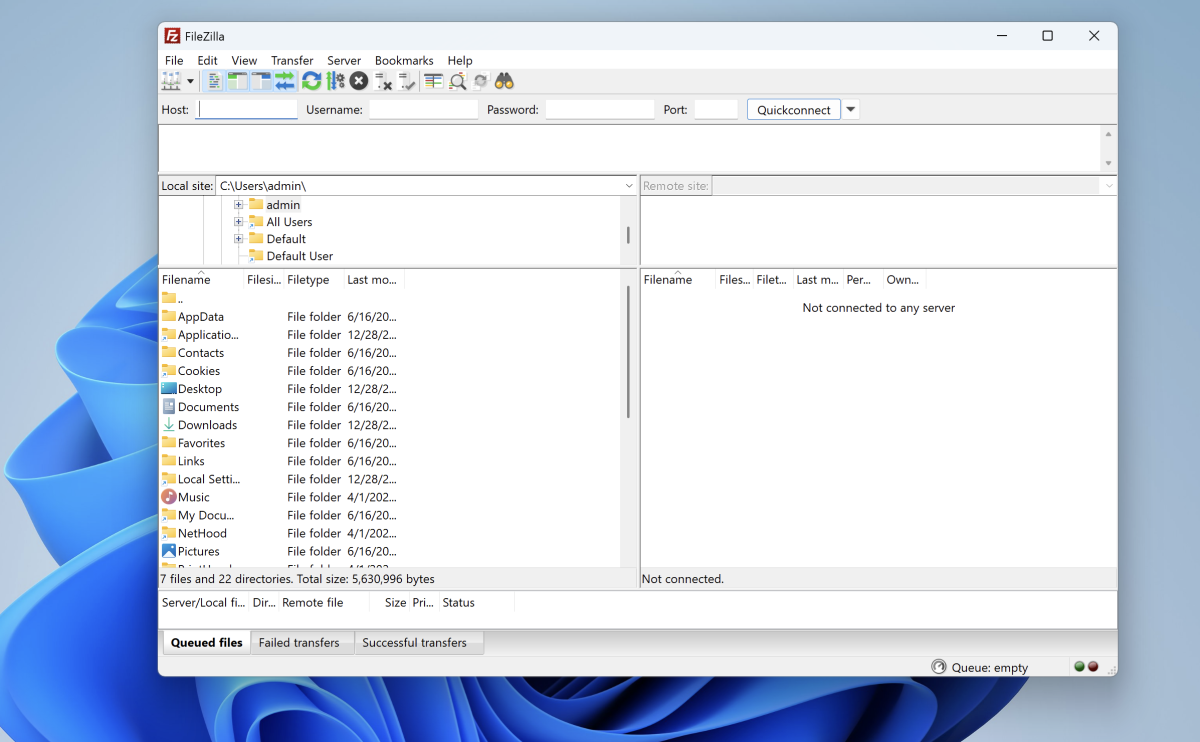
- Go to Site Manager and add a new site.
- Enter your server IP address or domain name in the Host field.
- Choose SFTP – SSH File Transfer Protocol.
- Set Port to
22. - Select Logon Type: Normal, then enter the username and password.
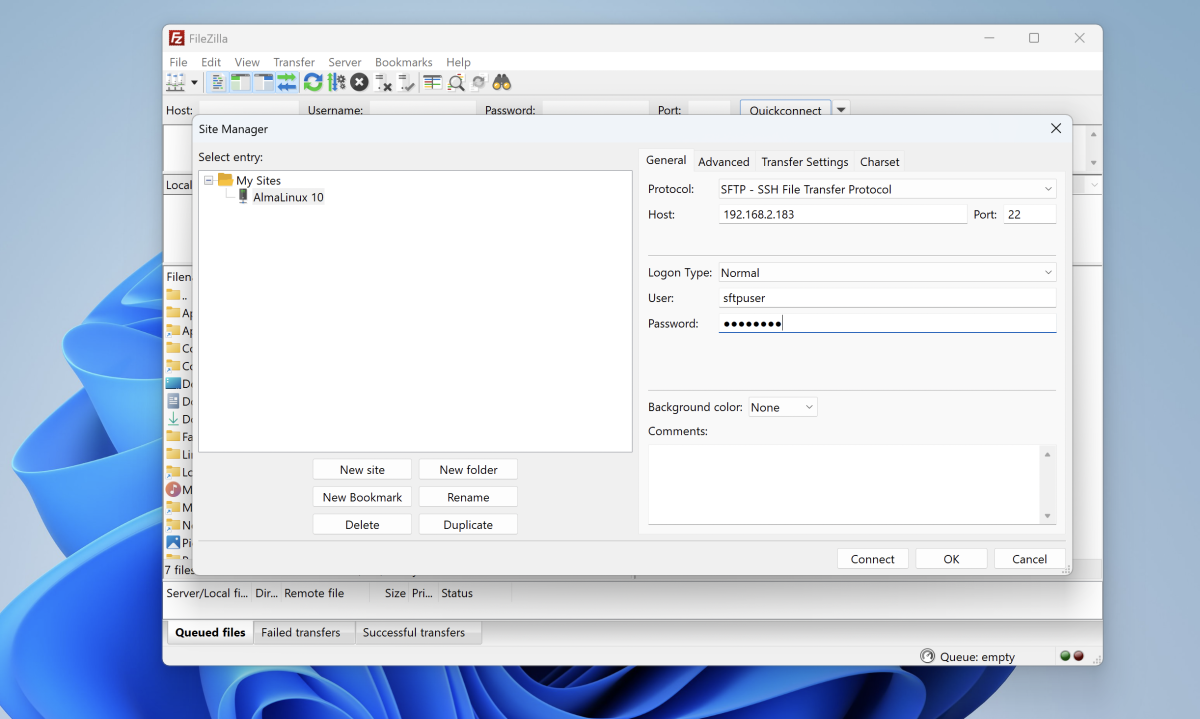
- Click Connect.
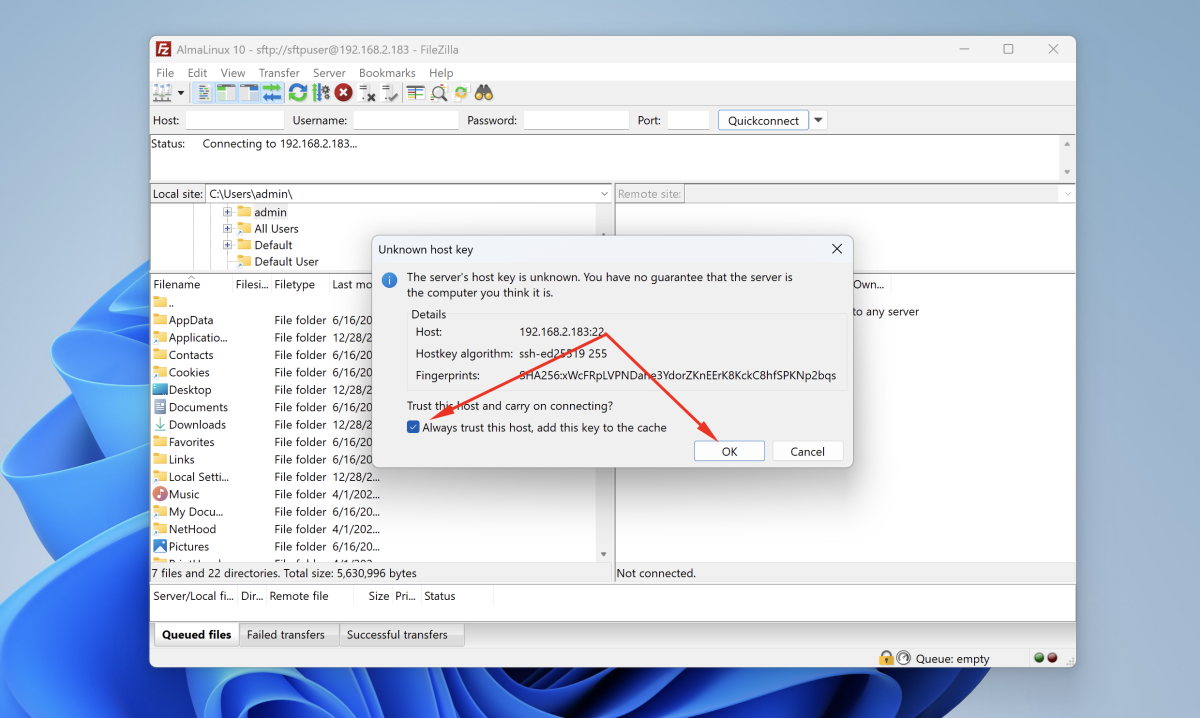
- If a message about an unknown host key appears, click OK to continue.
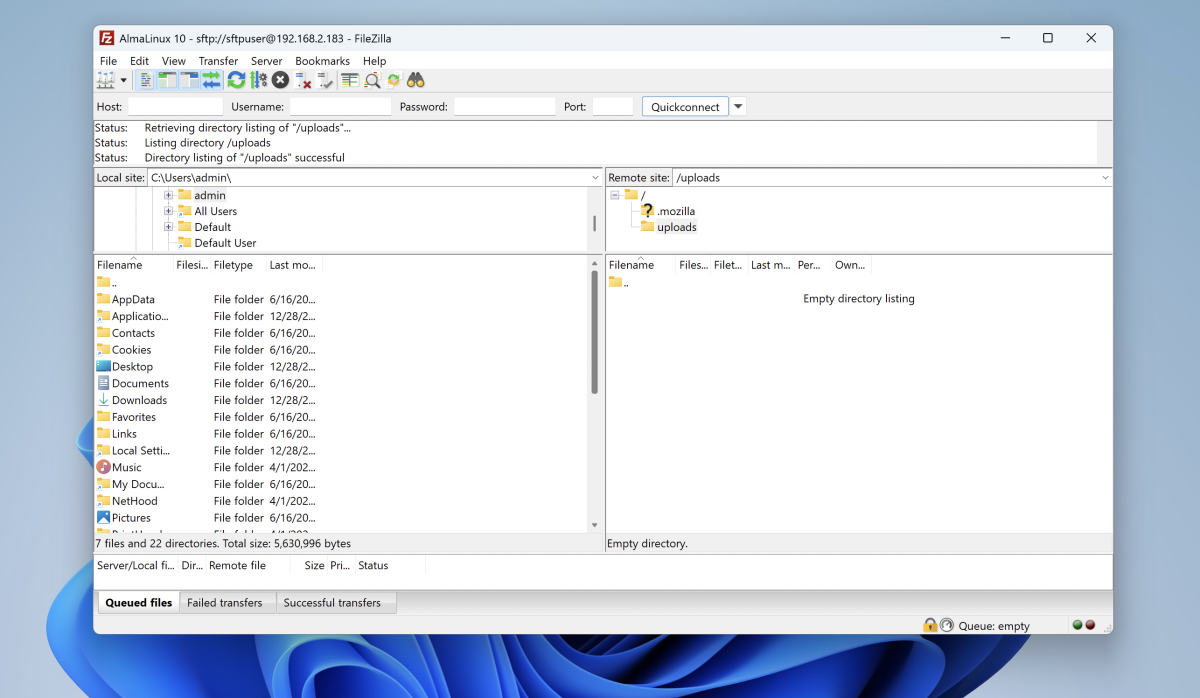
Congratulations, you have successfully set up an SFTP server on AlmaLinux 10.