To set up a vsftpd FTP server on AlmaLinux 10, install and configure vsftpd to allow secure local user access while disabling anonymous FTP.
Step 1 : Update system packages.

Step 2 : Install the vsftpd package.
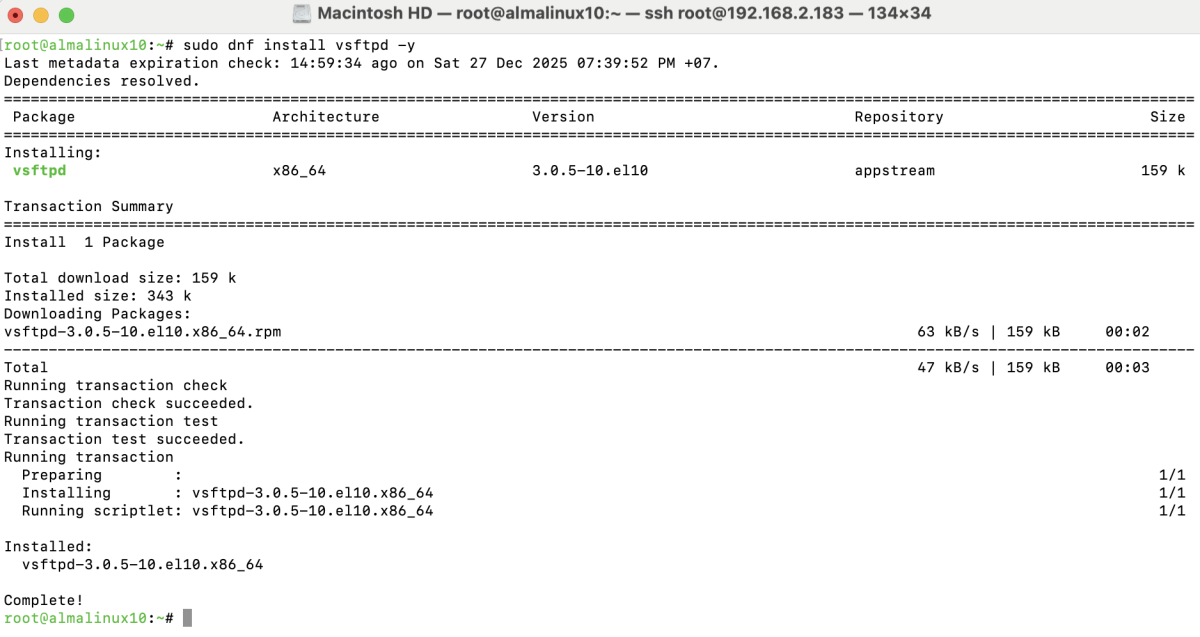
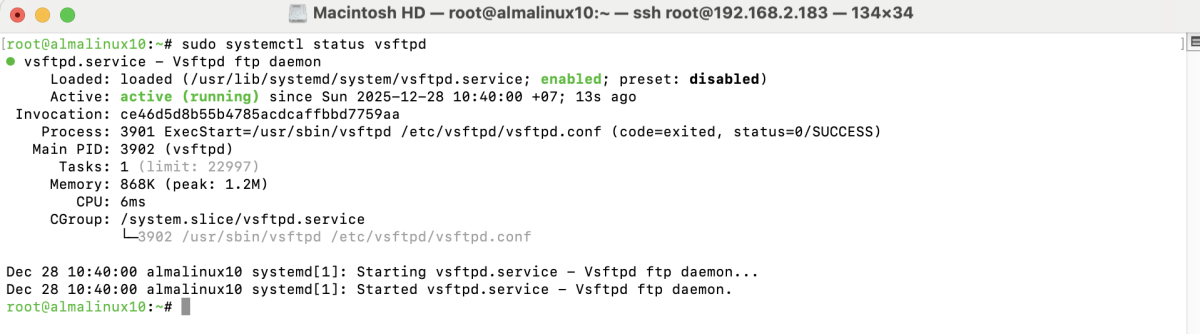
Step 3 : Enable vsftpd to start at boot and start the service.

Check the service status:
Step 4 : Open the vsftpd configuration file:
Update or add the following configuration options:
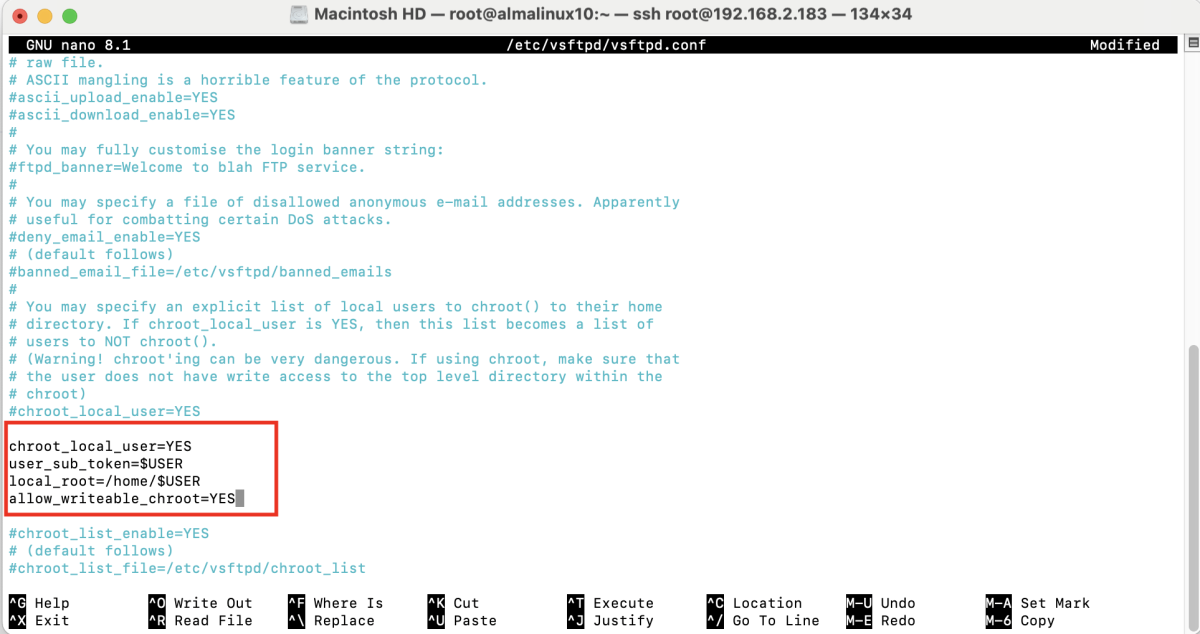
Save and close the file.
Step 5 : Apply the configuration changes.

Step 6 : Create a new local user for FTP access.

Step 7 : Set a password for the FTP user.

Step 8 : Allow FTP service through the firewall.

Step 9 : If SELinux is enabled, apply the following commands:

Step 10 : Test the FTP Connection
Open an FTP client such as FileZilla.
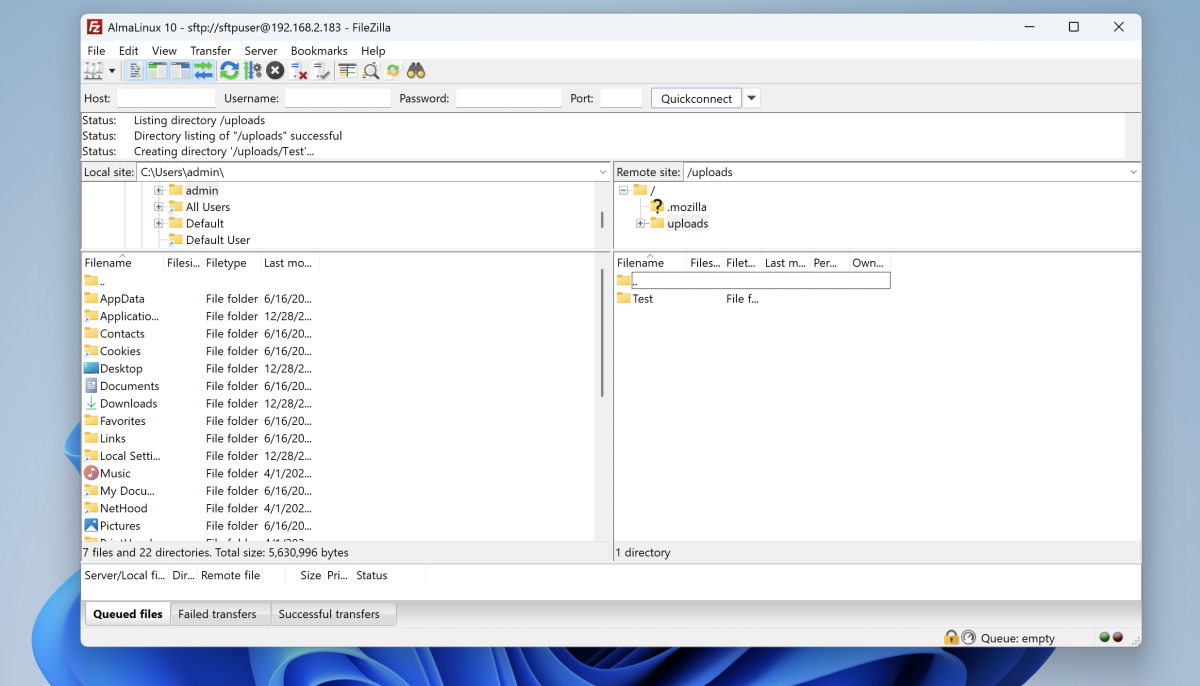
Open Site Manager and create a new site.
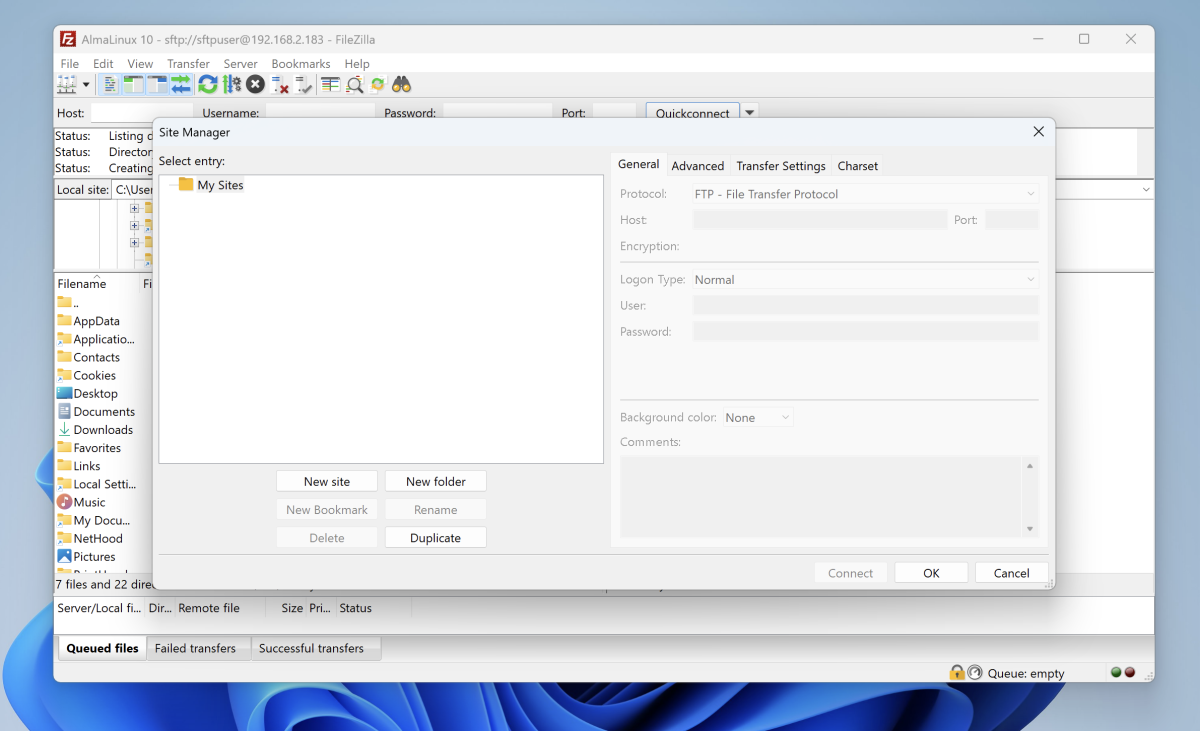
Configure Connection Settings
- Host: Server IP address or domain
- Protocol: FTP
- Encryption: Use plain FTP
- Logon Type: Normal
- Username: ftp_user
- Password: FTP user password
- Port: 21
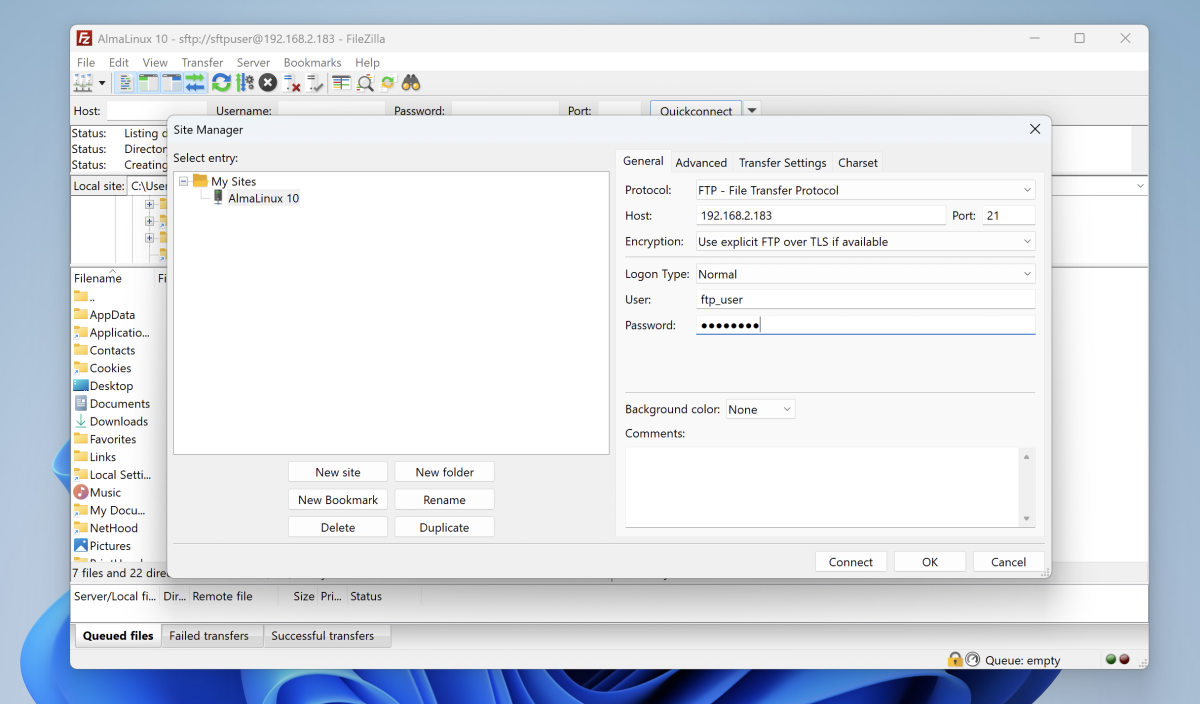
Click Connect to establish the FTP connection.
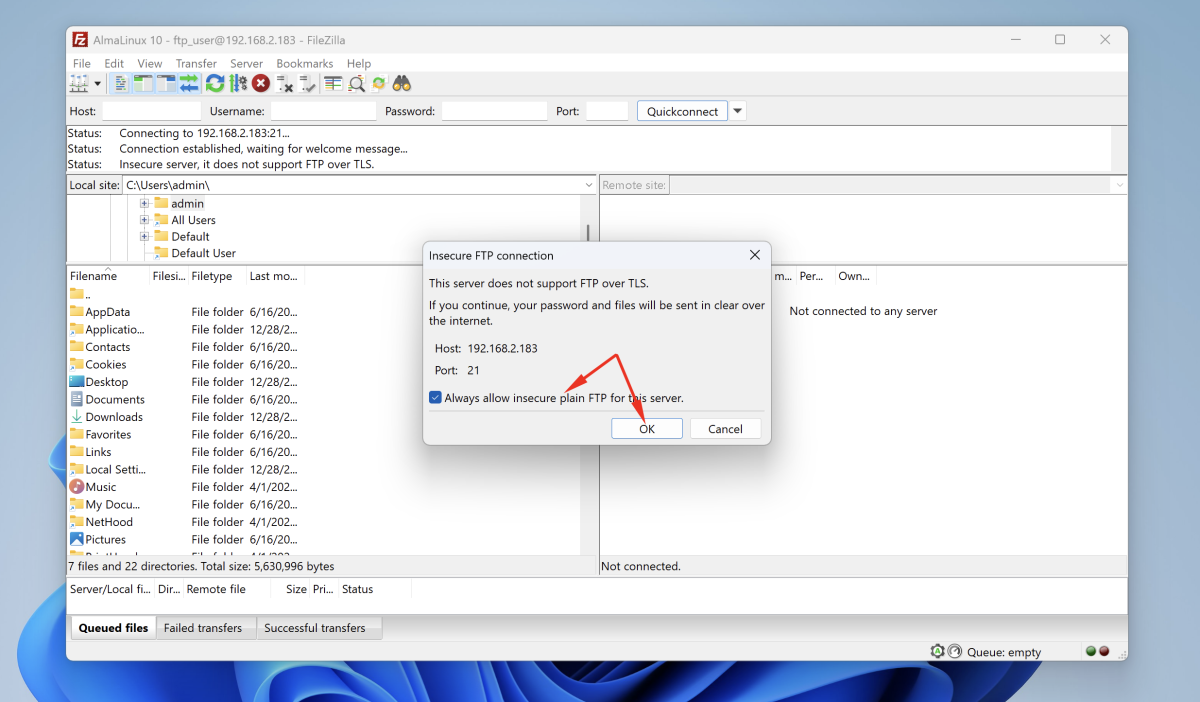
If a message appears saying “This server does not support FTP over TLS”, click OK to continue.
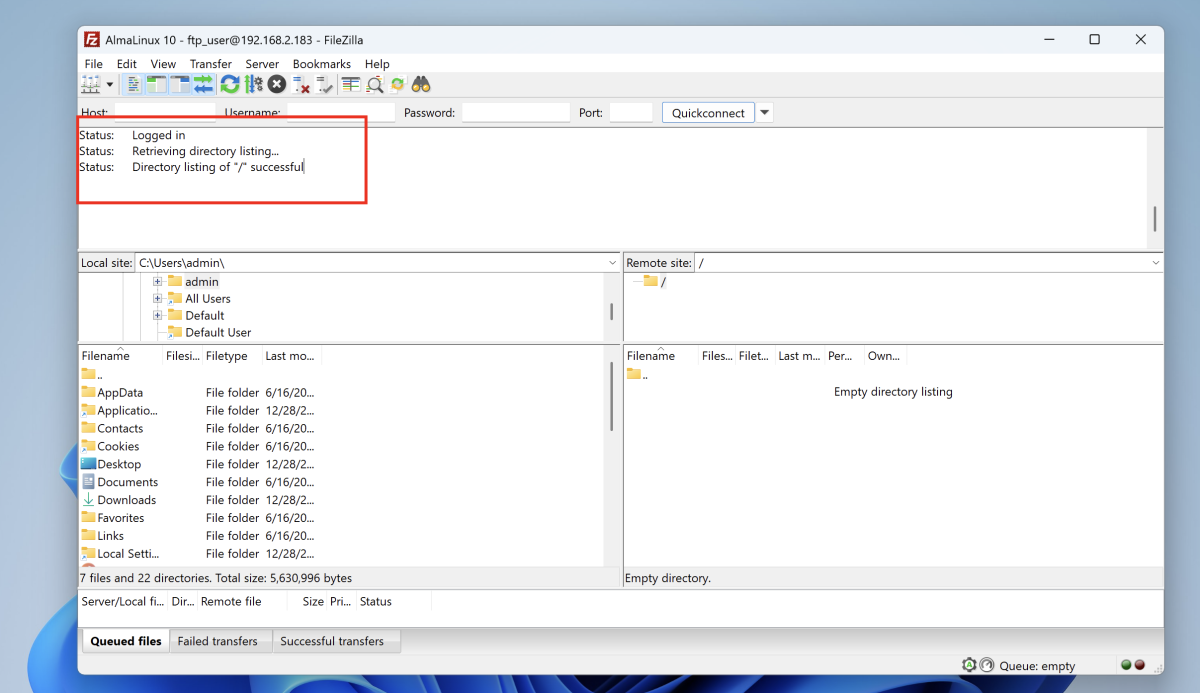
Congratulations, you have successfully installed and configured a vsftpd FTP server on AlmaLinux 10.