To install WordPress with a LAMP stack on AlmaLinux 10, follow the steps below:
Step 1 : If you have not installed the LAMP stack (Linux, Apache, MariaDB, PHP) yet, please follow the guide: AlmaLinux 10 Guides
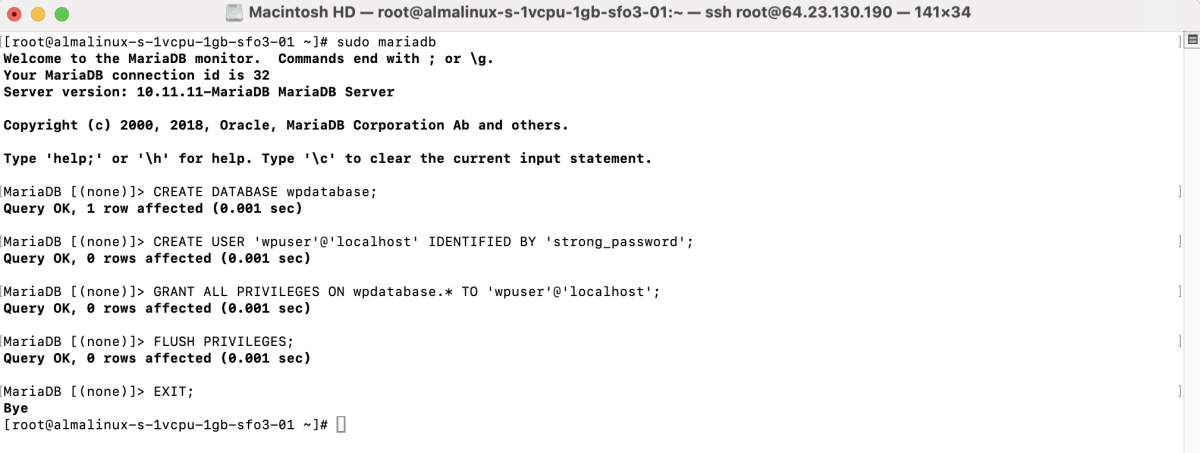
Step 2 : Create a Database for WordPress
Log in to MariaDB:

Create a database and user:
Step 3 : Create Website Directory
Download WordPress
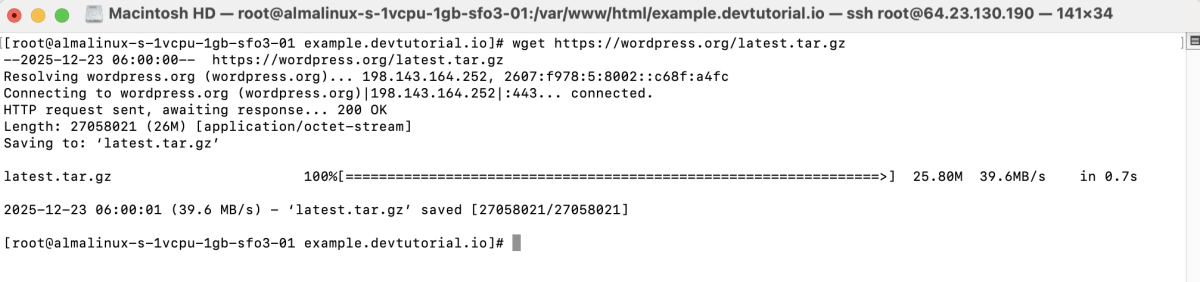
Extract WordPress

Move Files to Web Directory

Set Permissions

Step 4 : Create a virtual host configuration file:
Add the following content:
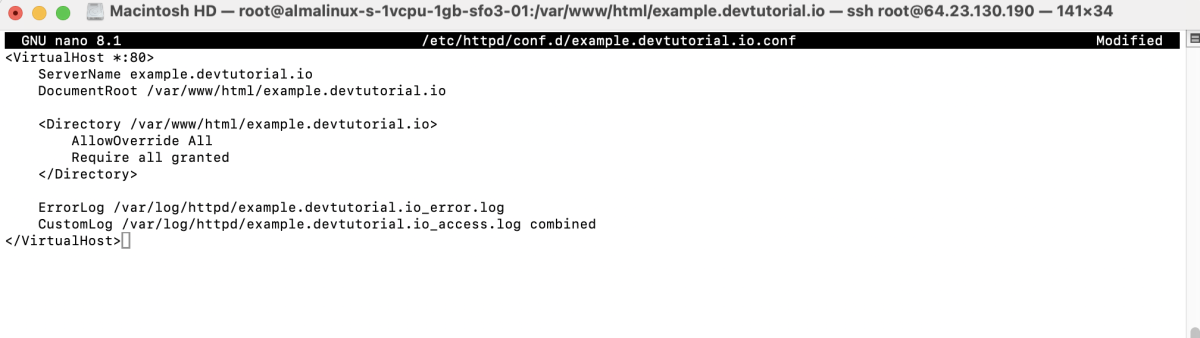
Save and exit.
Step 5 : Test the configuration:

Restart Apache:

Step 6 : If SELinux is enabled, run:

Step 7 : Open a web browser and go to:
Follow the WordPress installation steps:
- Click Let's go!
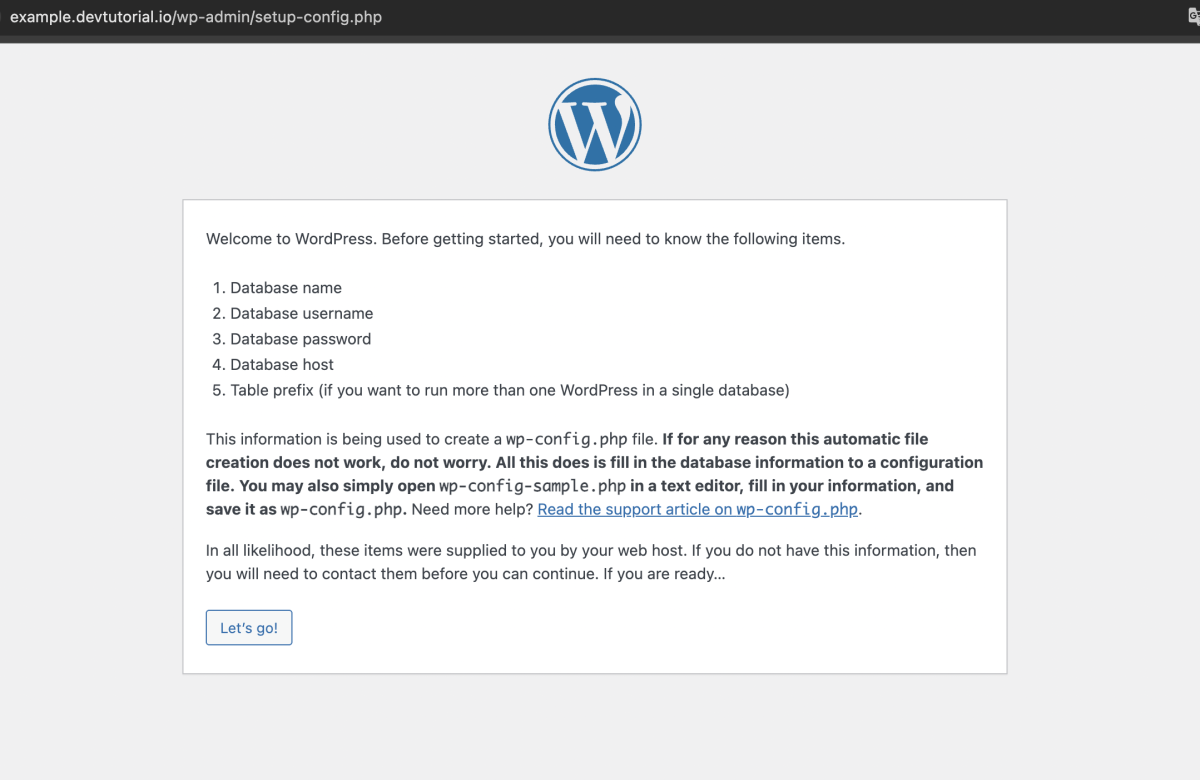
- Enter database details:
- Database Name:
wpdatabase - Username:
wpuser - Password
- Database Host:
localhost
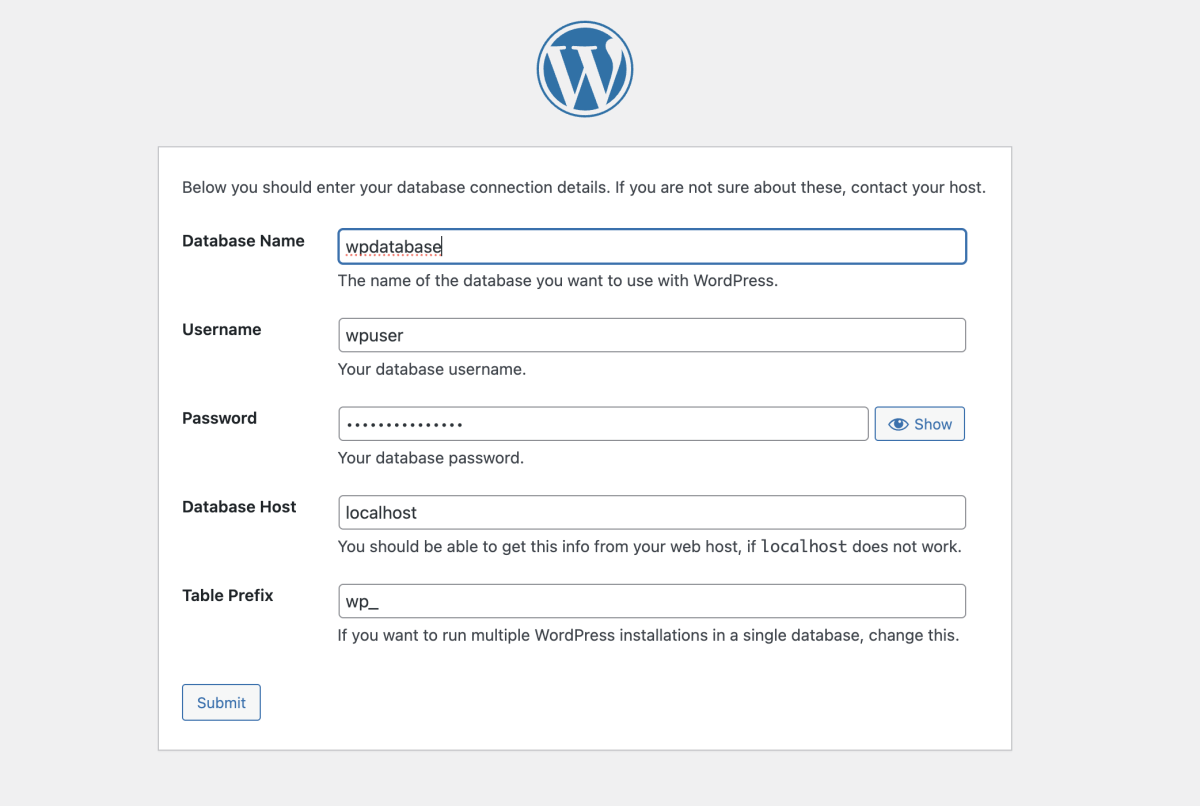
- Click Submit
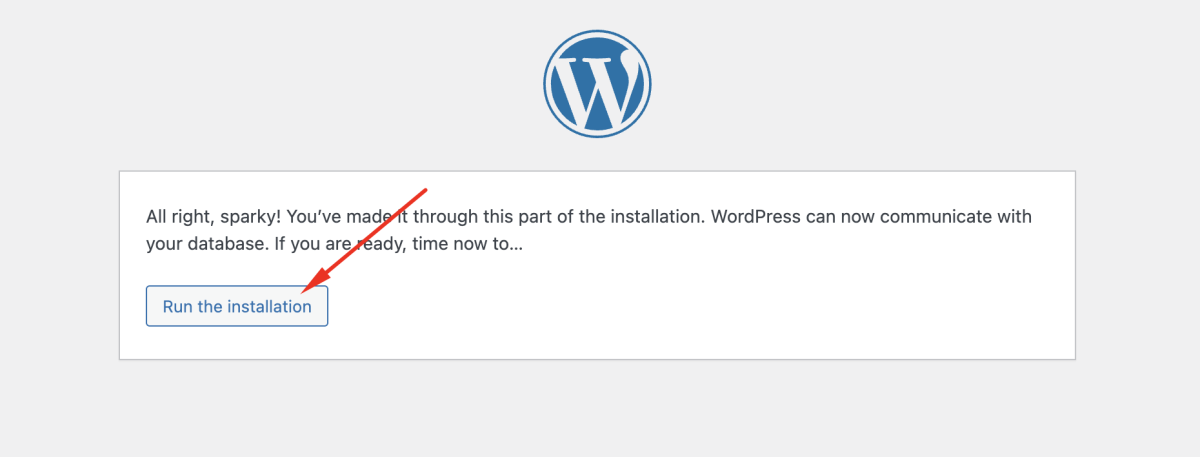
- If the information is correct, click Run the installation
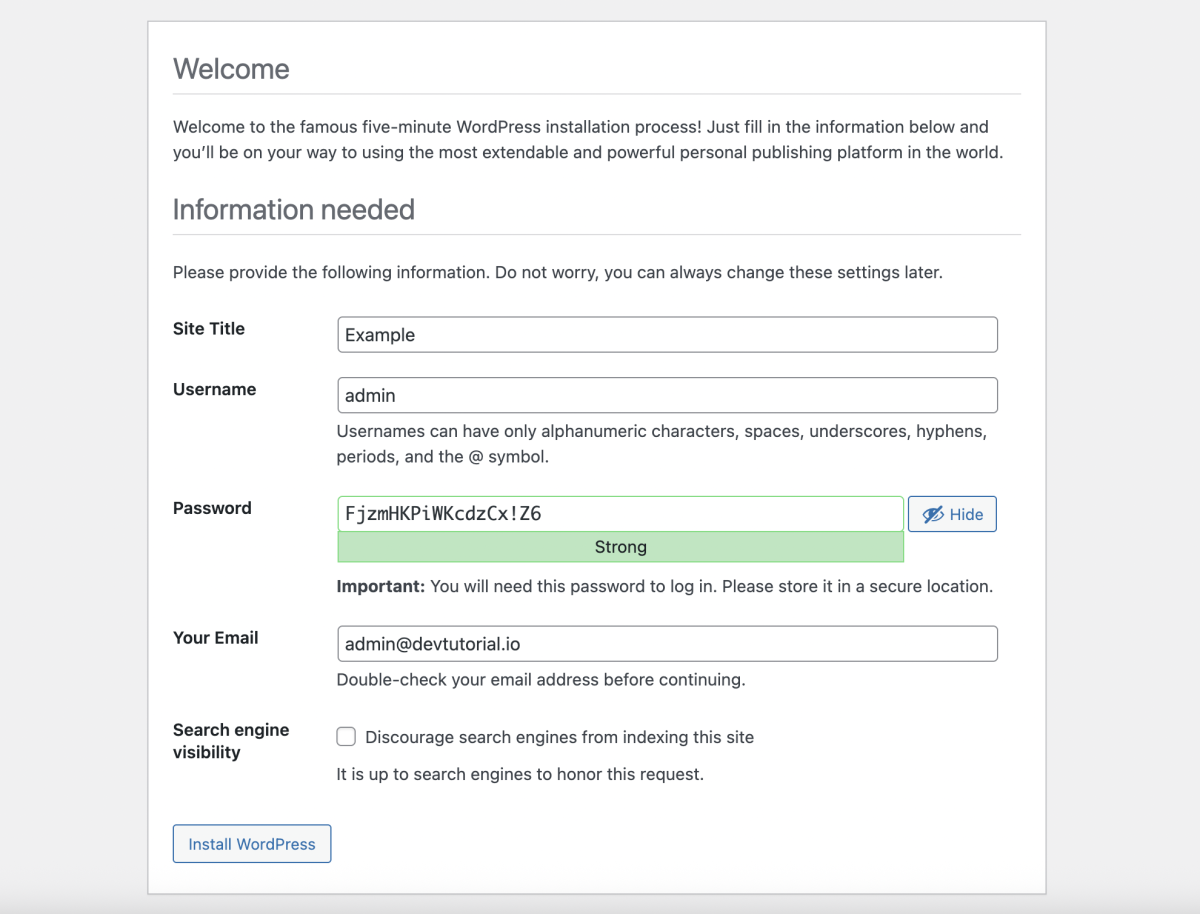
- Enter site title, admin username, password, and email. Click Install WordPress
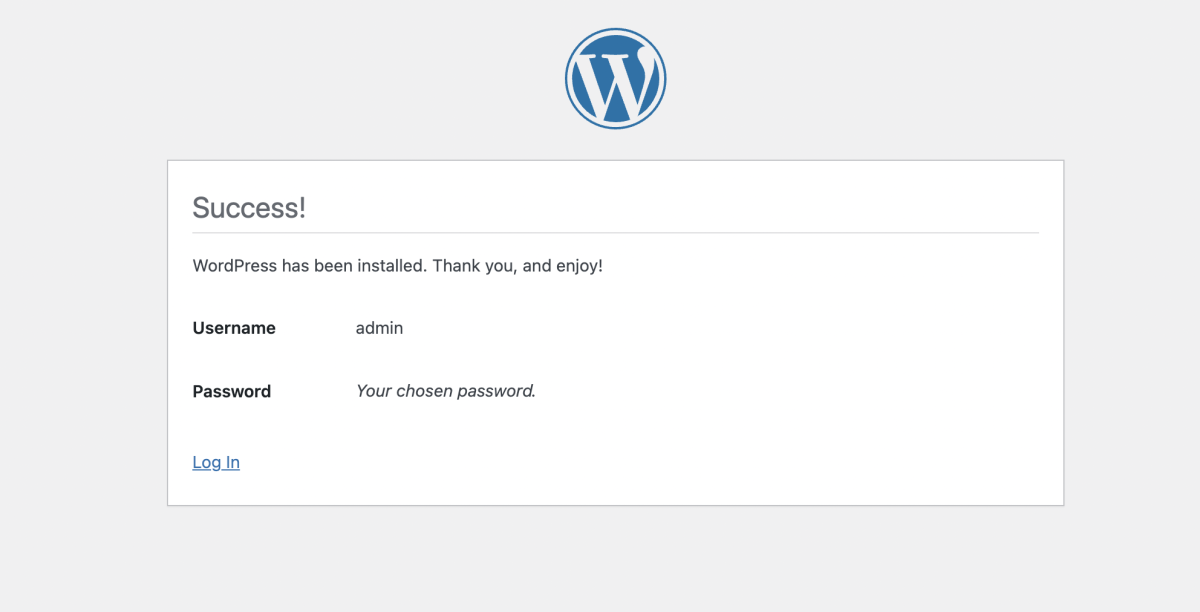
Step 8 : After installation, log in at:
Step 9 : Once logged in, you will be redirected to the WordPress dashboard where you can start managing your website.
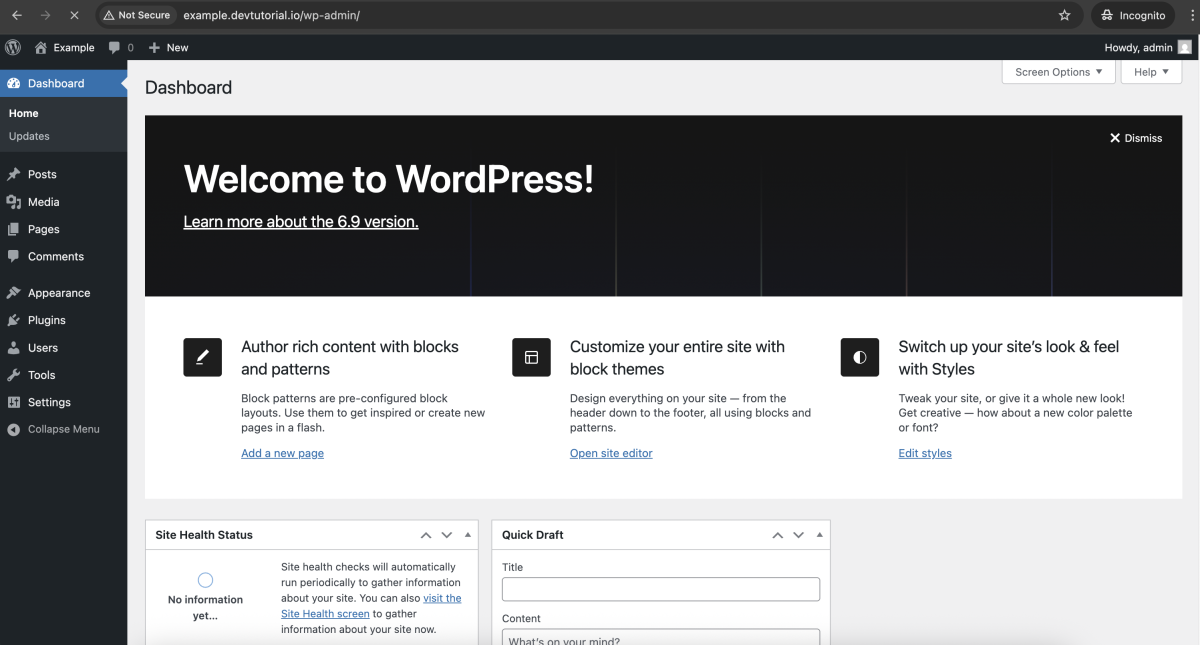
Congratulations! You have successfully installed and configured WordPress with LAMP on AlmaLinux 10.