To setup an SFTP server on Debian 13, follow the steps below.
Step 1 : Update the package list and upgrade existing packages.
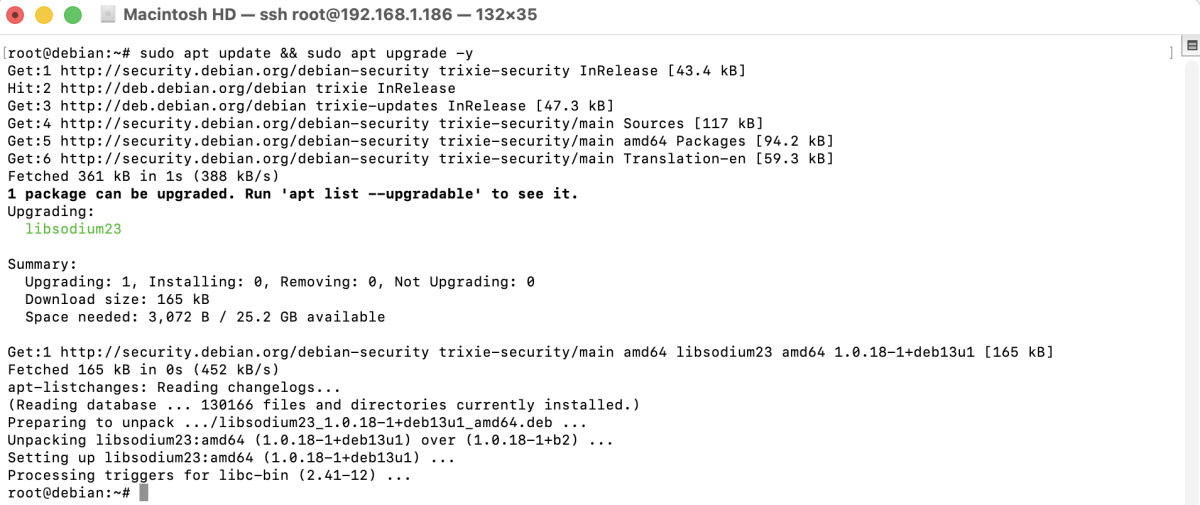
Step 2 : Install the OpenSSH server if it is not already installed.
Verify that the SSH service is running:
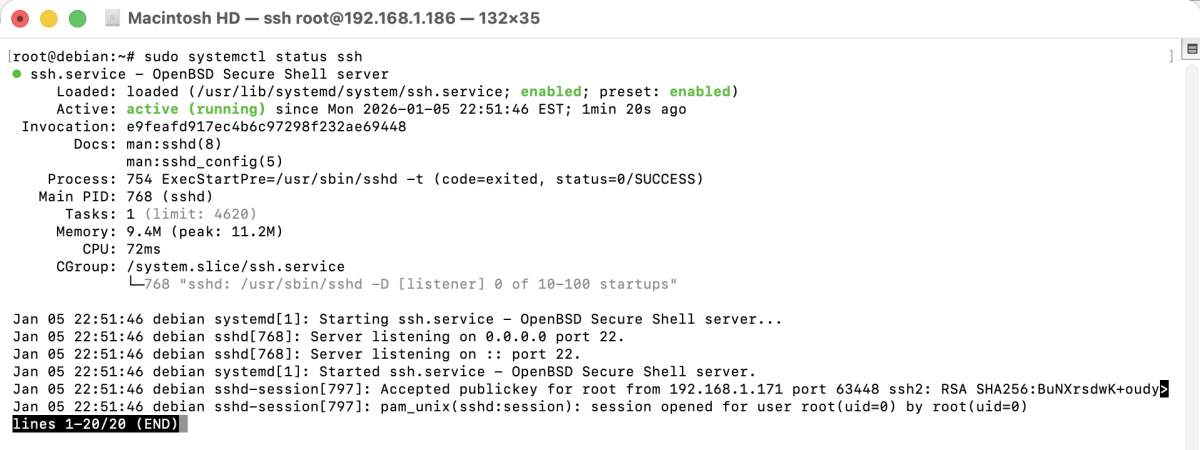
Step 3 : Edit sshd_config and Add SFTP Configuration
Open the SSH configuration file:
Add the following SFTP configuration at the end of the file:
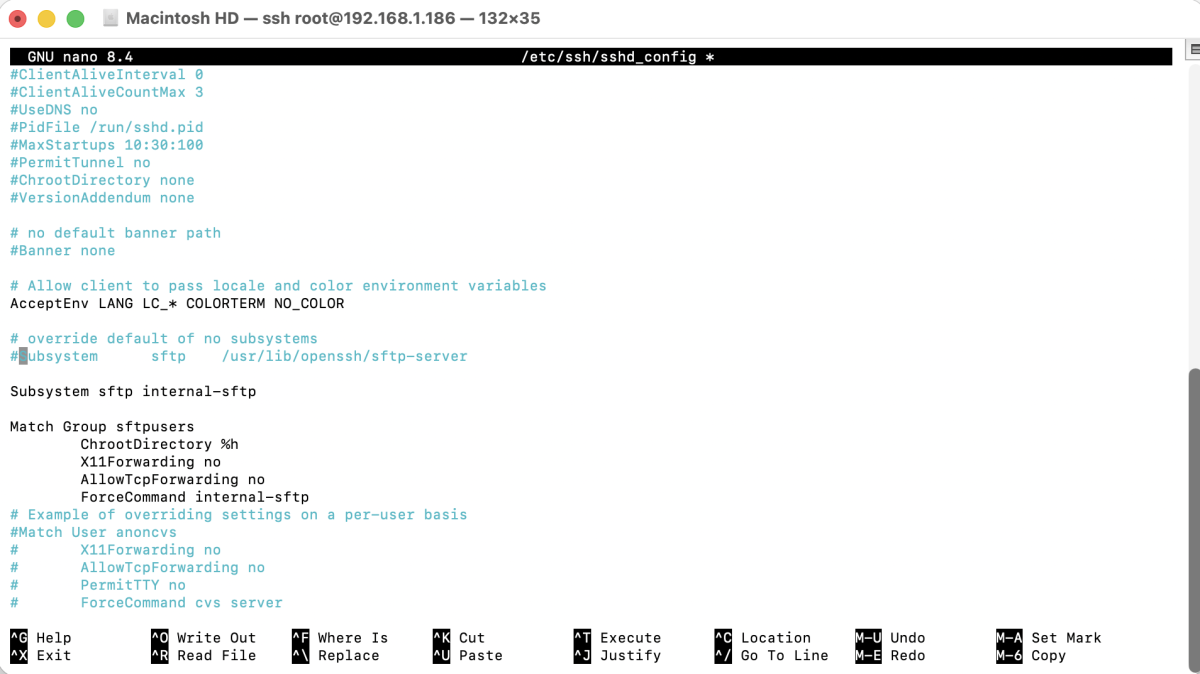
Save and exit the file.
Step 4 : Apply the configuration changes by restarting SSH.

Step 5 : Create a dedicated group for SFTP users.

Step 6 : Create a new SFTP user account.
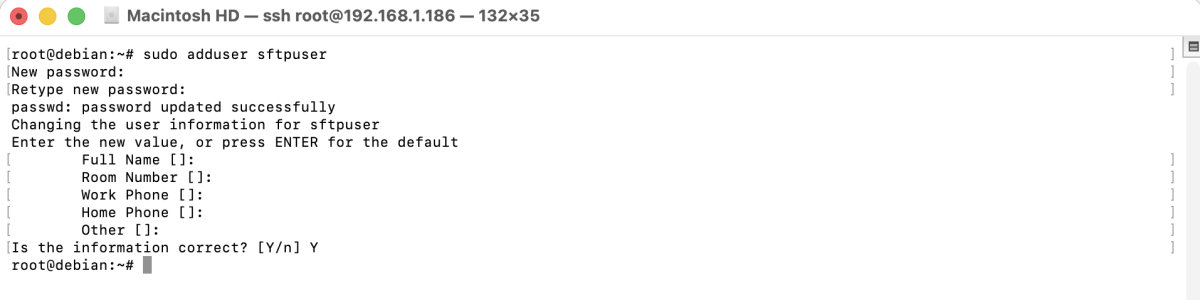
Follow the prompts to set a password and user details.
Step 7 : Add the user to the SFTP group.

Step 8 : Set correct ownership and permissions for the SFTP user's home directory.

This setup ensures the user can upload files only inside the upload directory.
Step 9 : If you want to allow password authentication, ensure the following settings exist in /etc/ssh/sshd_config:
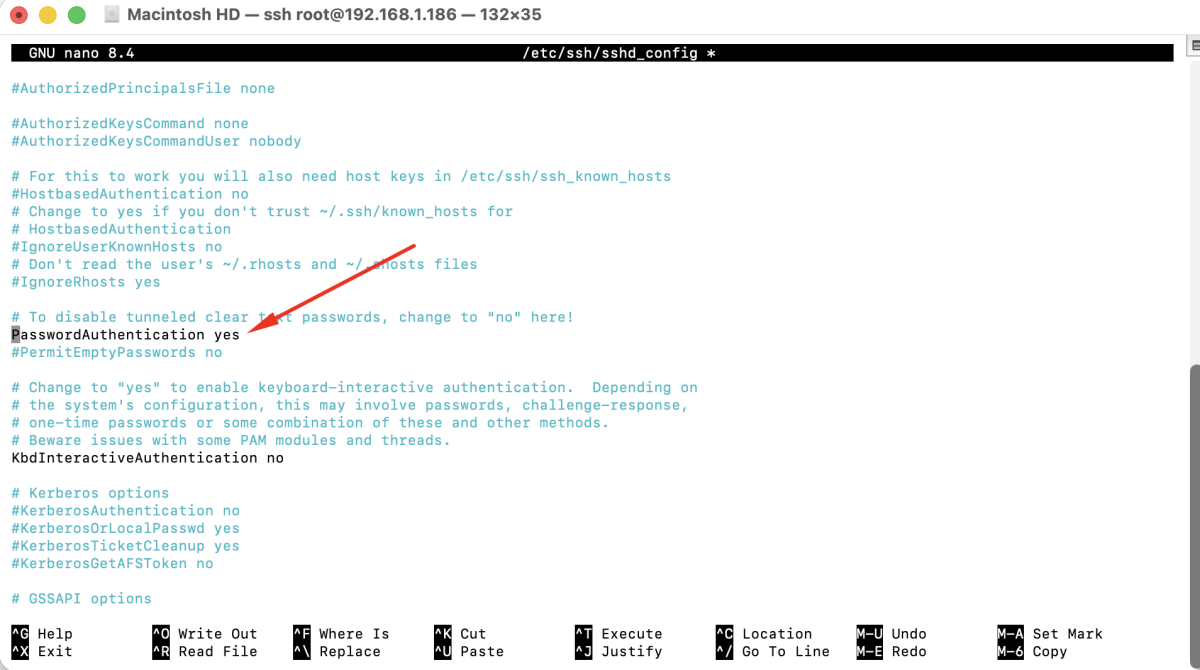
Save the file after making changes.
Step 10 : Restart the SSH service again to apply all changes.

Step 11 : Test the SFTP Connection
- Open an SFTP client such as FileZilla.
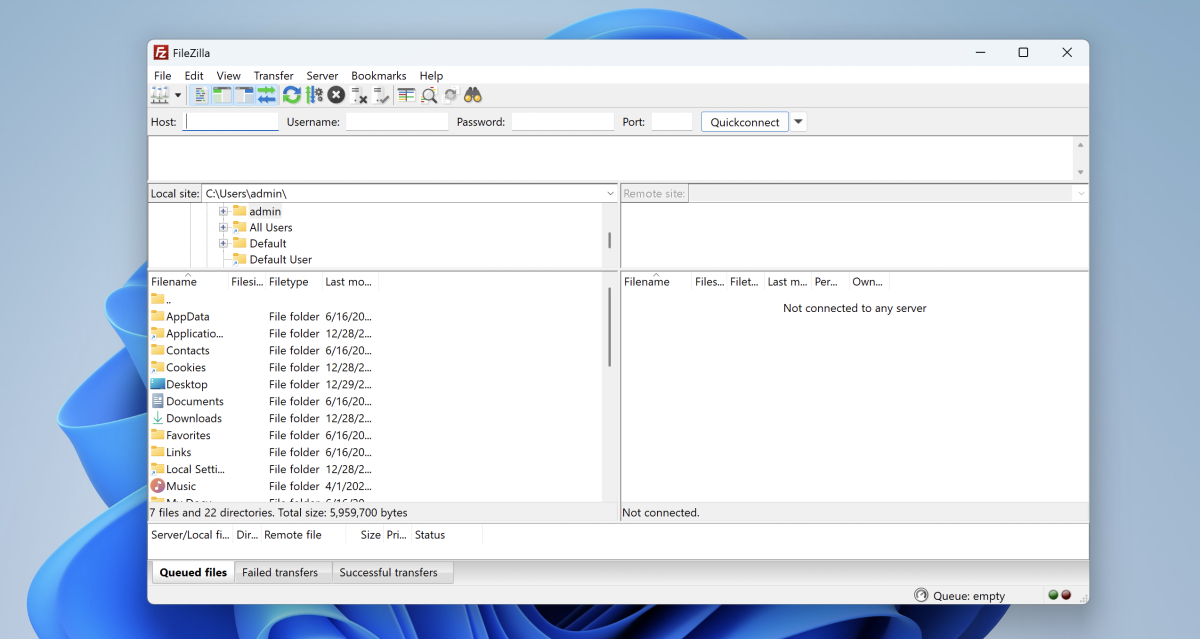
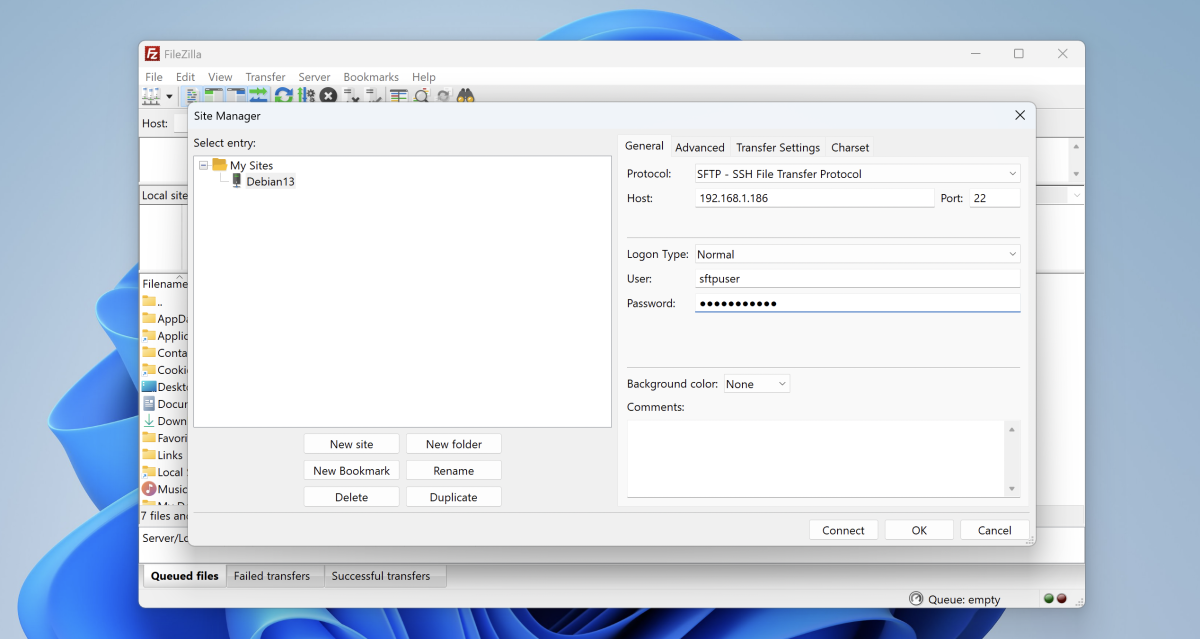
- Add a New Site : Go to File → Site Manager → New Site.
- Fill in the connection details step by step:
- Protocol: SFTP – SSH File Transfer Protocol
- Host: Your server IP or domain
- Port: 22
- Logon Type: Normal
- Username:
sftpuser - Password: Your SFTP user password
- Click Connect.
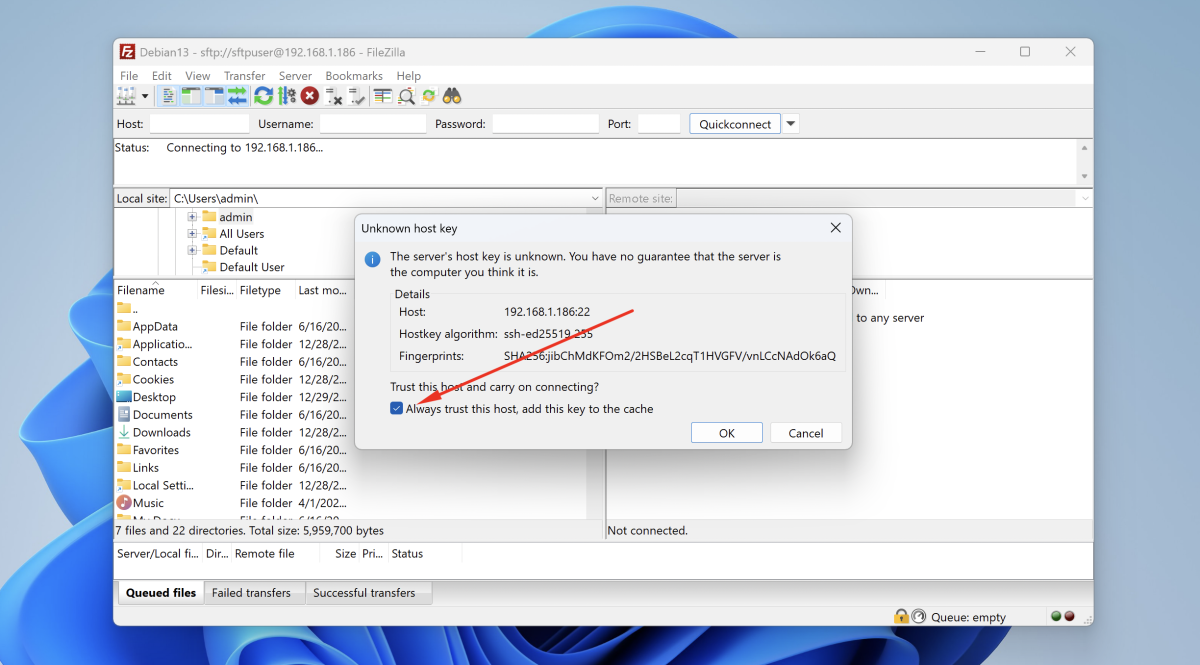
- If FileZilla shows an “Unknown host key” warning, select Always trust this host and click OK.
- If configured correctly, you should be logged in and restricted to the user's directory.
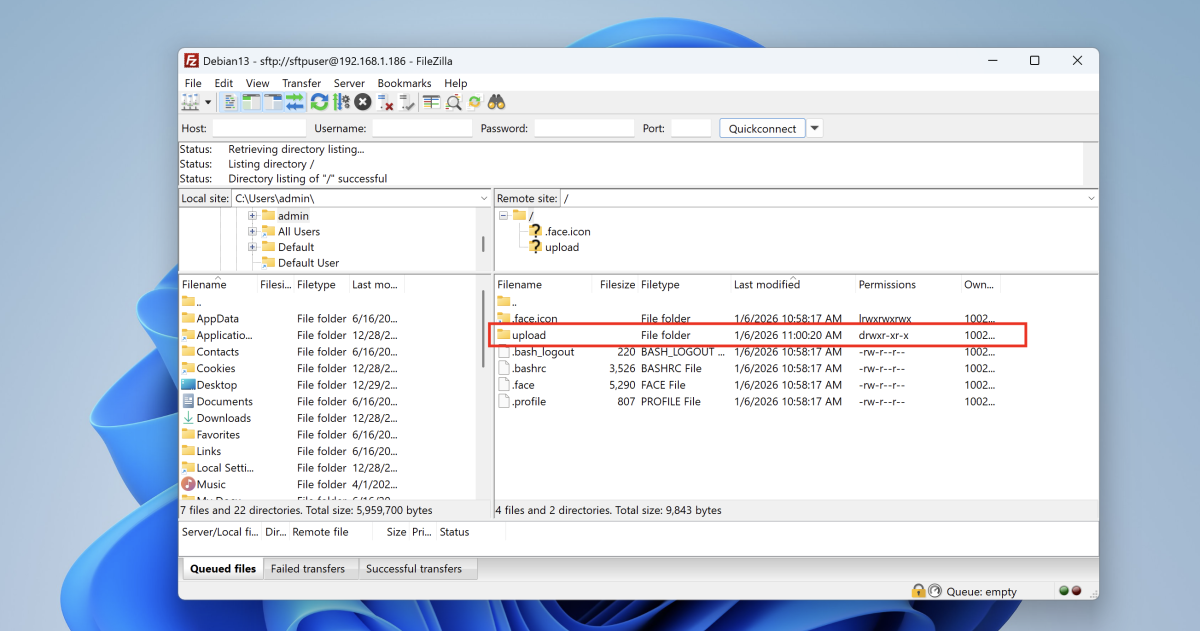
Congratulations! You have successfully set up an SFTP server on Debian 13.