To create a bootable USB installer for Debian 13. Follow the steps below:
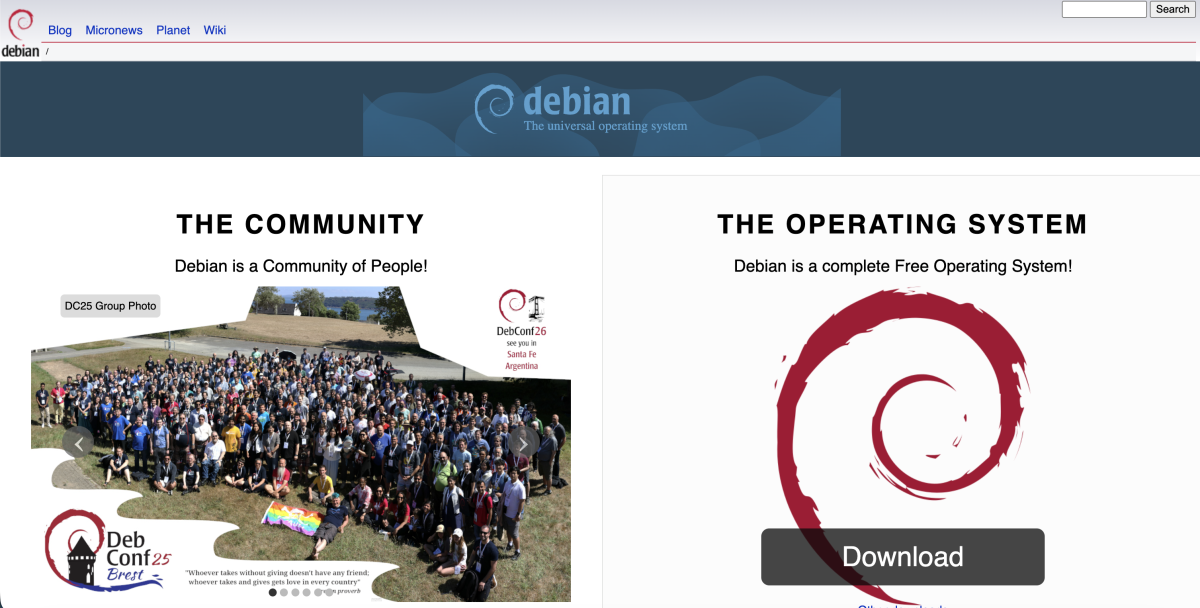
Step 1 : Download the Debian 13 ISO file from the official Debian website: https://www.debian.org
Step 2 : Download Rufus from the official website: https://rufus.ie
Step 3 : Insert the USB flash drive into your computer. Make sure the USB has enough capacity, as all existing data will be erased.
Step 4 : Open the Rufus application.
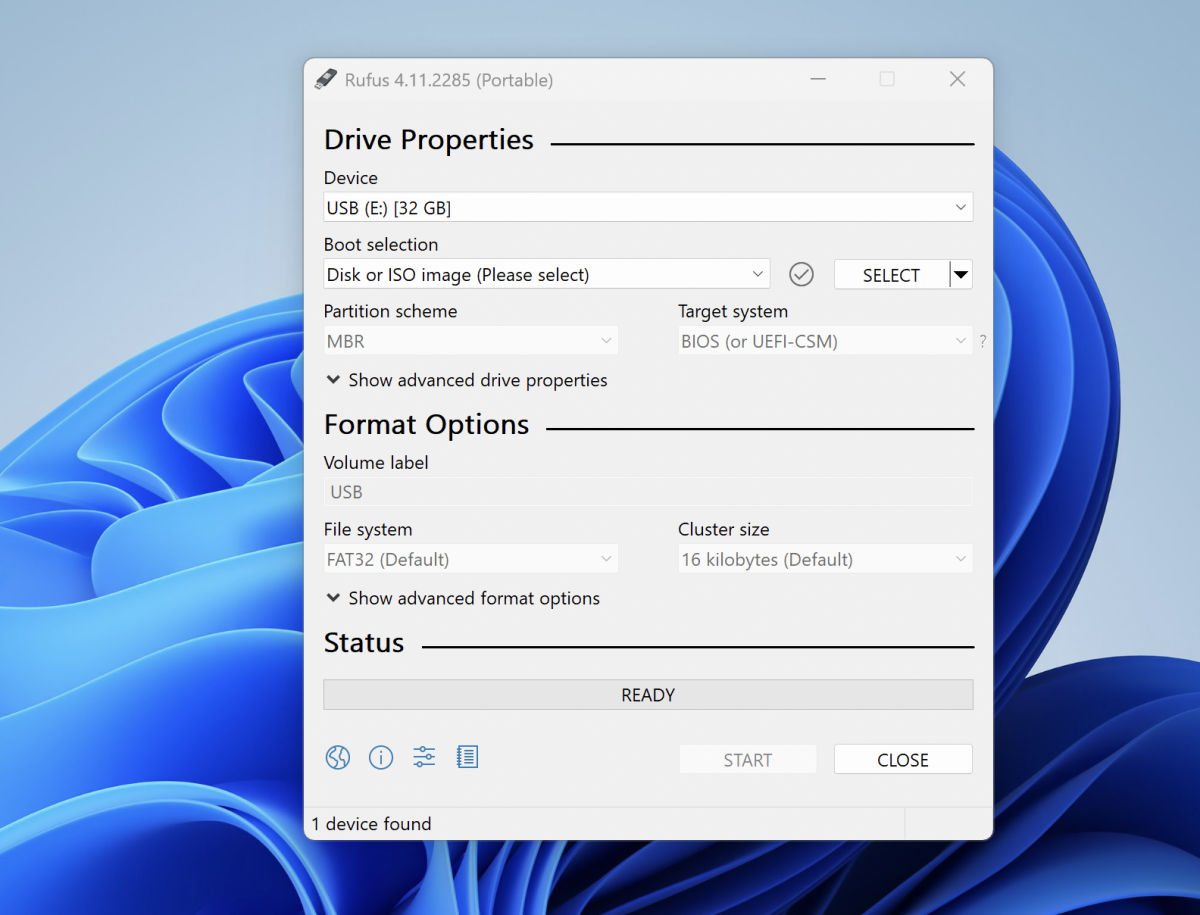
Step 5 : Configure Rufus with the following sub-steps:
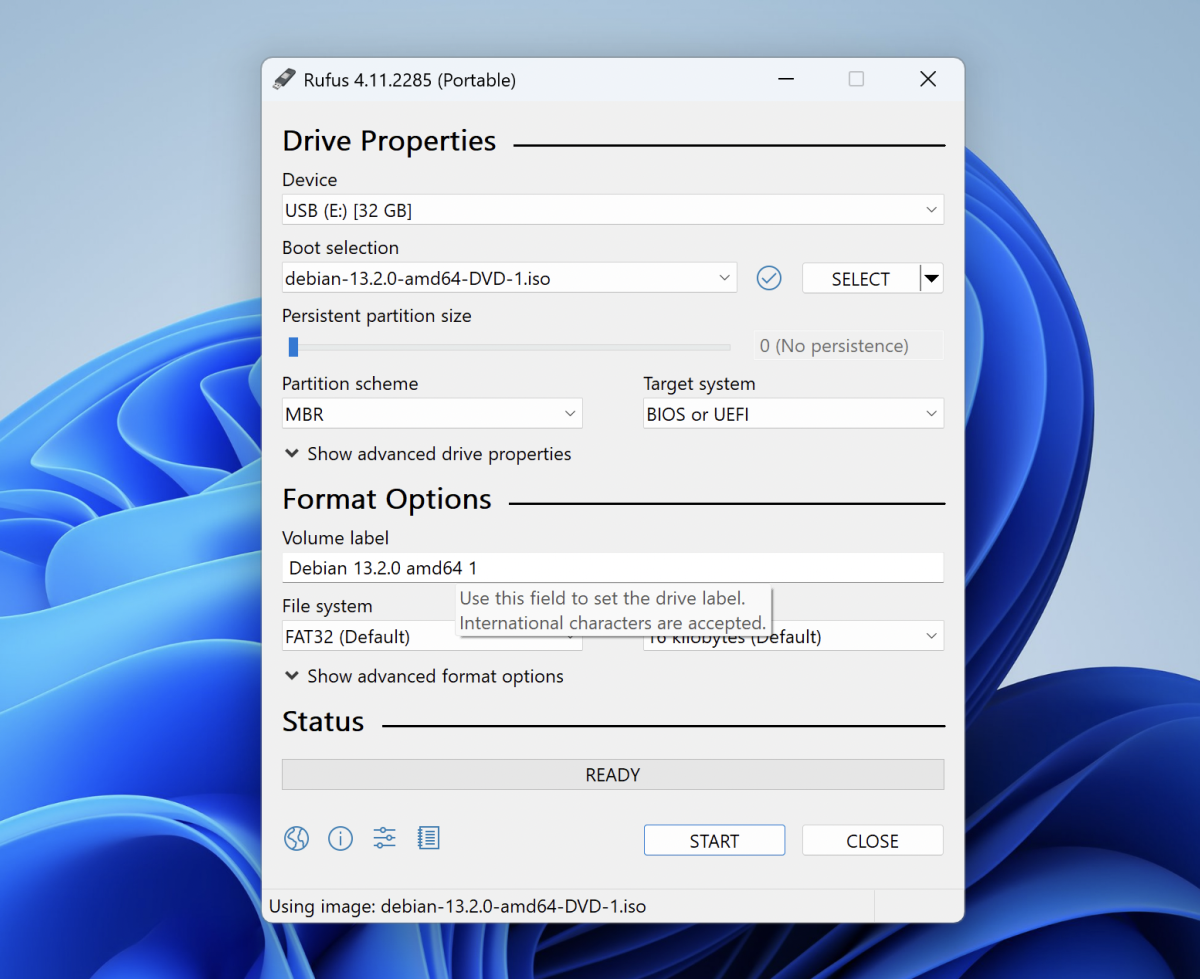
- Device: Select your USB flash drive
- Boot selection: Click Select and choose the Debian 13 ISO file
- Partition scheme: Choose MBR or GPT based on your system
- Target system: Automatically selected
- Leave other settings at their default values
Click the Start button to begin creating the bootable USB.
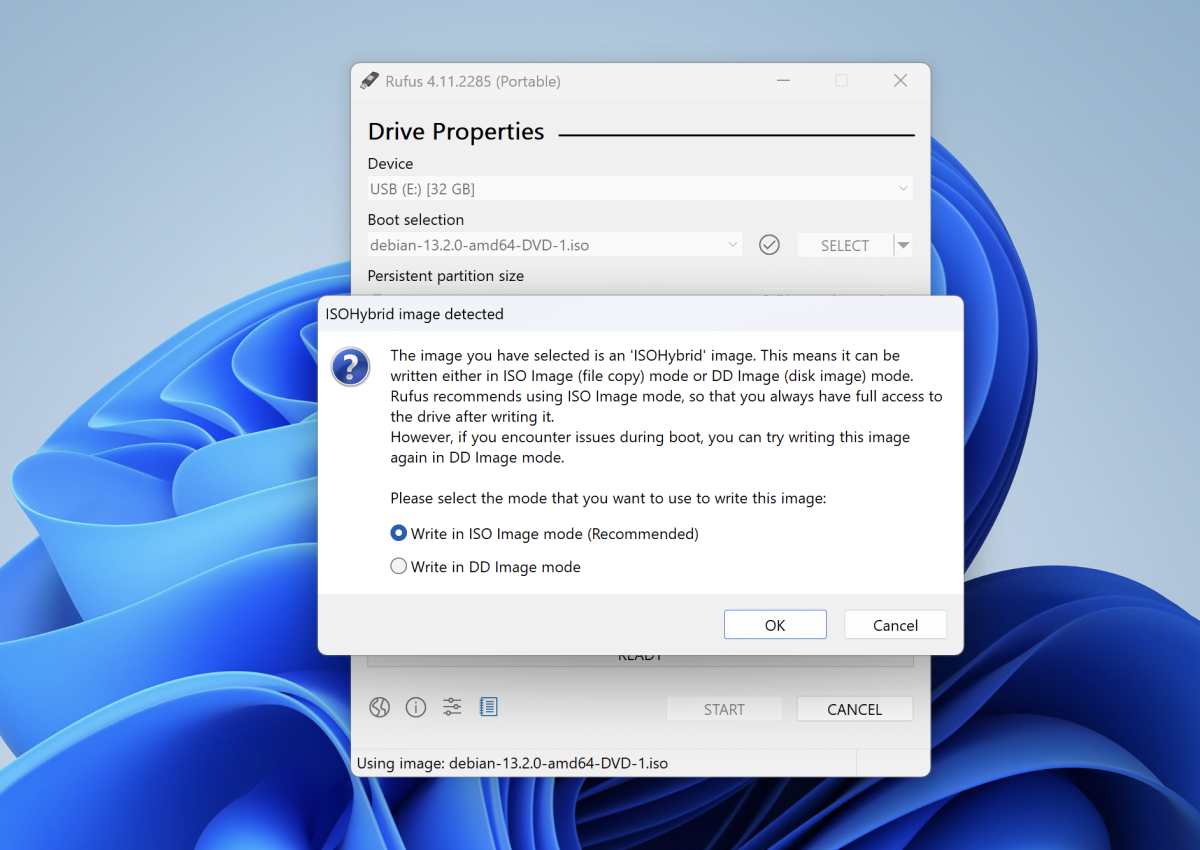
Step 6 : When prompted, choose Write in ISO Image mode (Recommended).
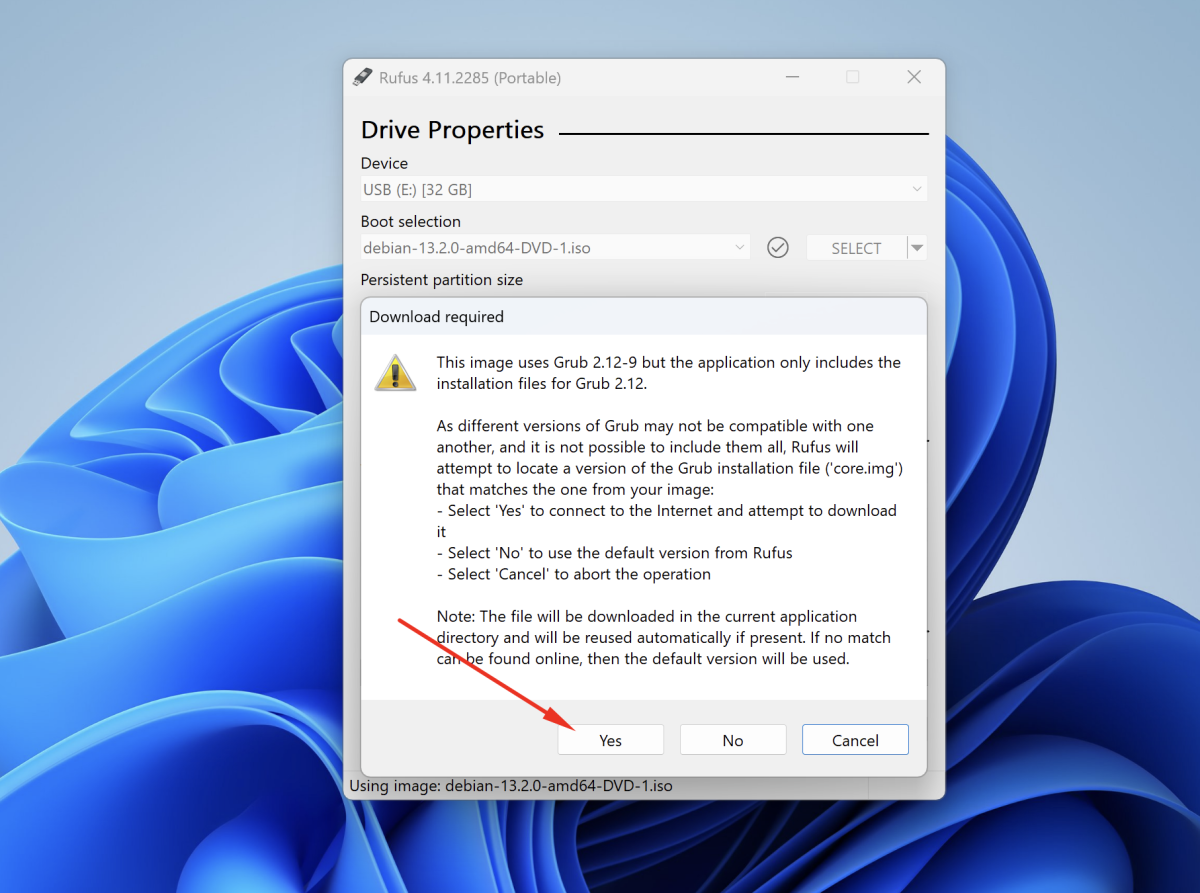
Step 7 : If Rufus asks to download additional required files such as a newer GRUB version, select Yes.
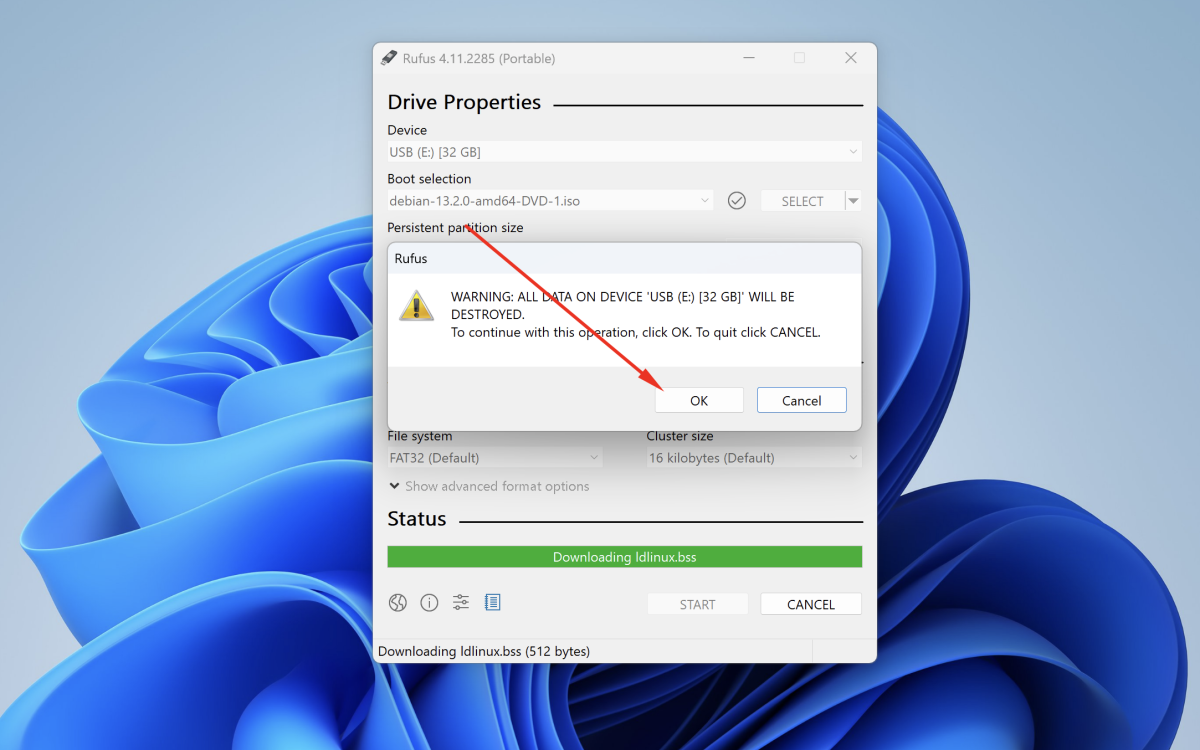
Step 8 : Confirm the USB formatting warning to continue.
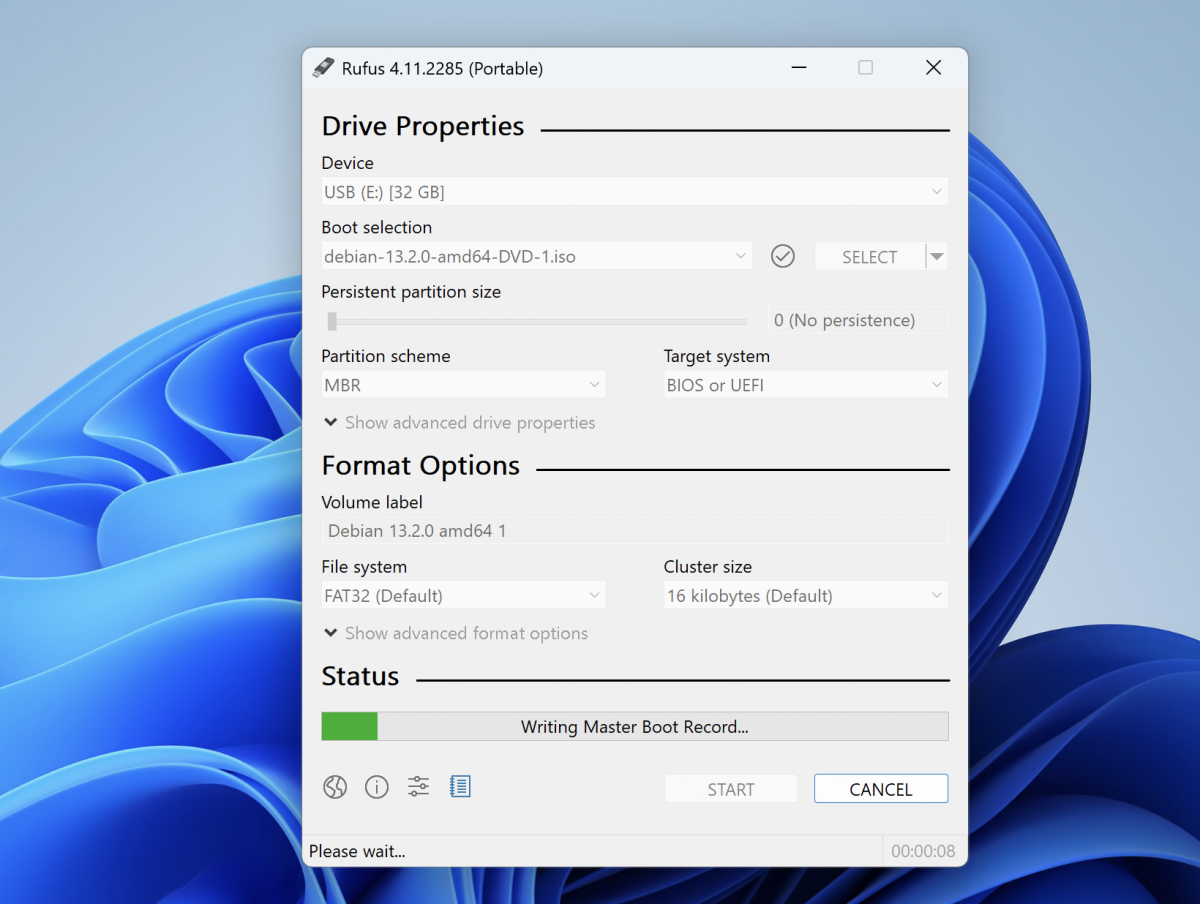
Step 9 : Wait until Rufus finishes creating the bootable USB installer.
Step 10 : After the process is complete, safely eject the USB flash drive.
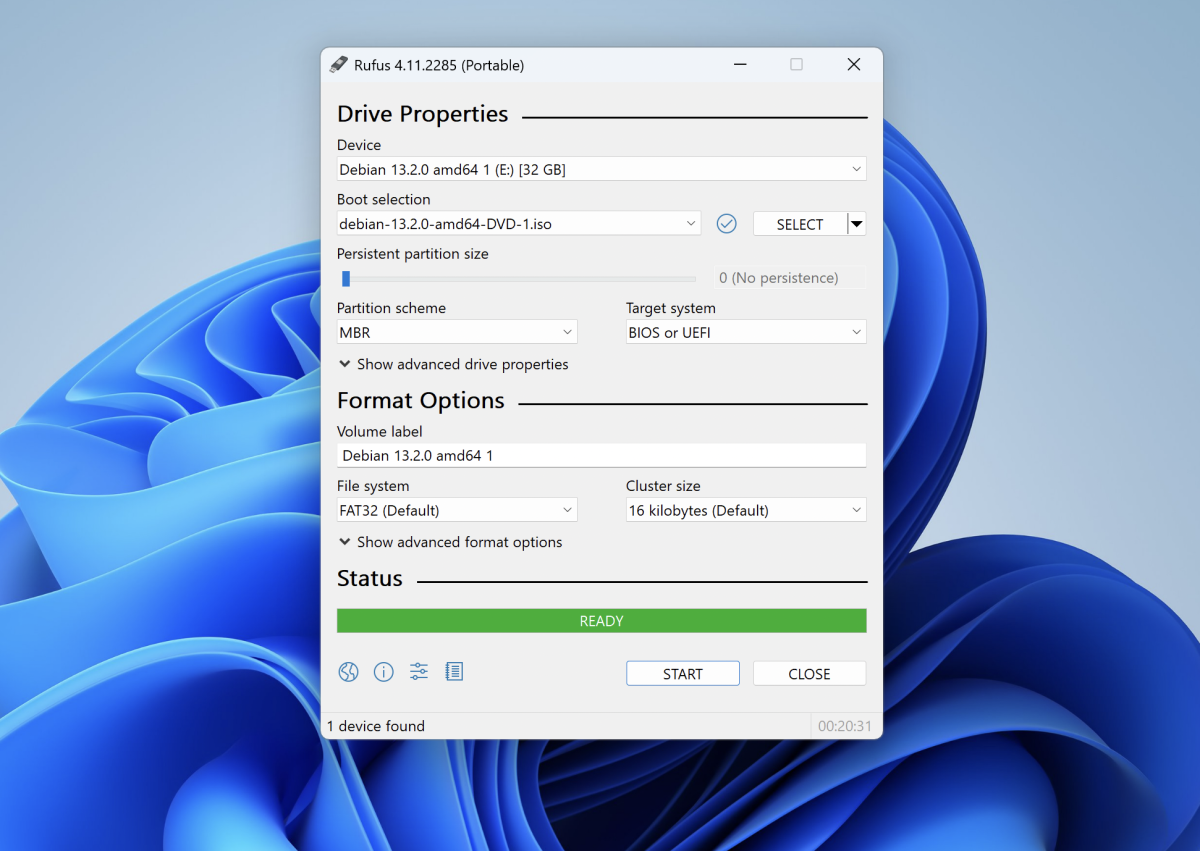
Congratulations, you have successfully created a bootable USB installer for Debian 13 and can now use it to install the operating system.