To Setup the vsftpd FTP server on Debian 13, follow the steps below.
Step 1 : Start by updating your system to make sure all packages are up to date.
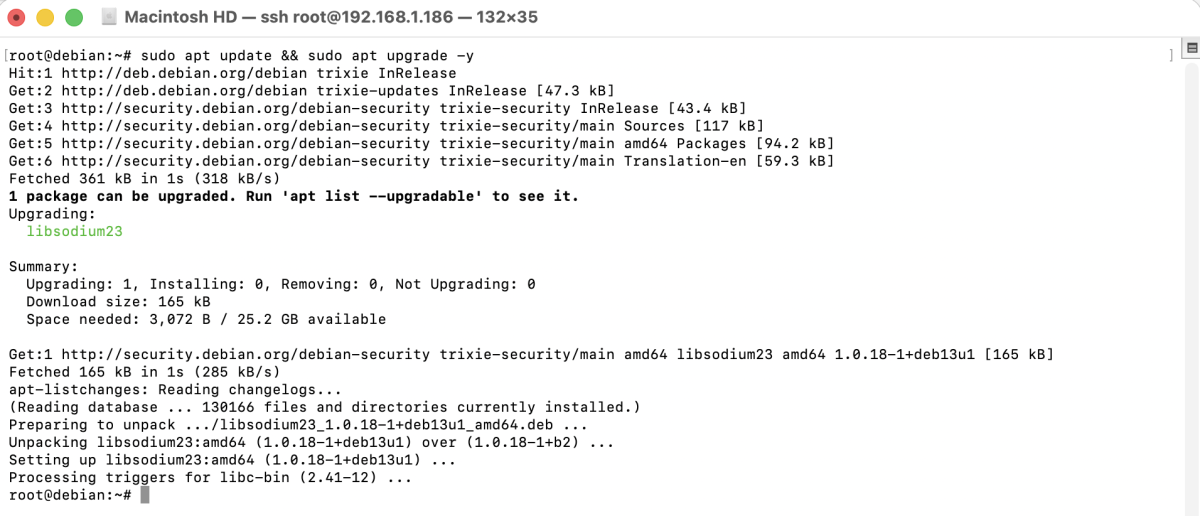
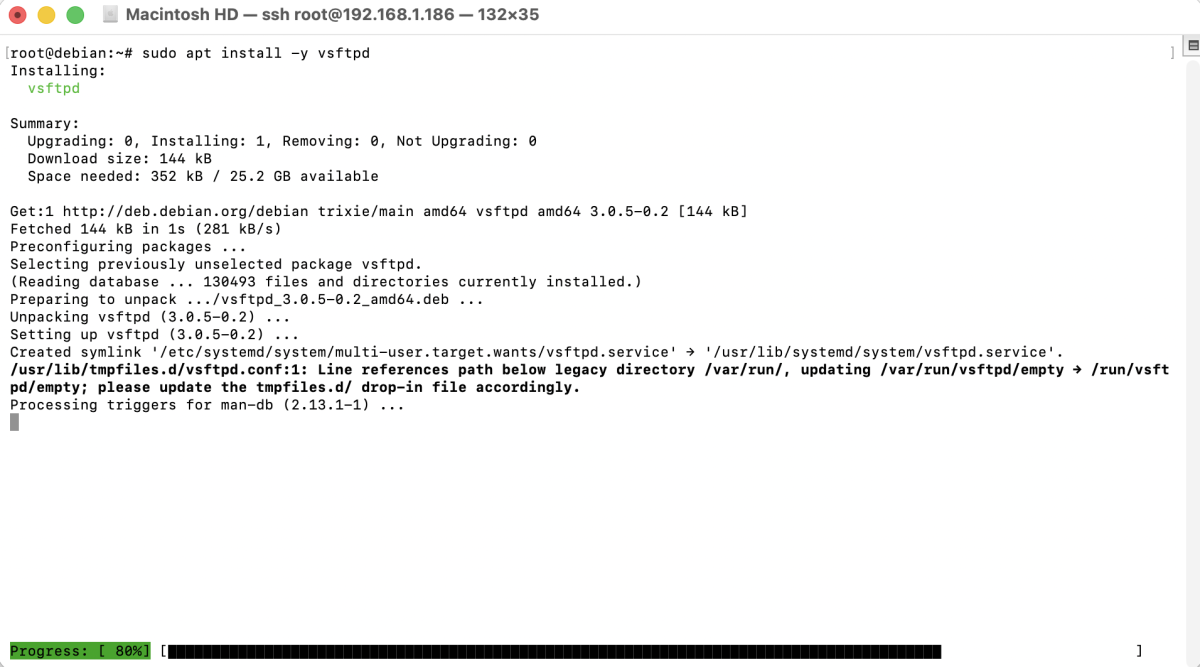
Step 2 : Install the vsftpd FTP server package.
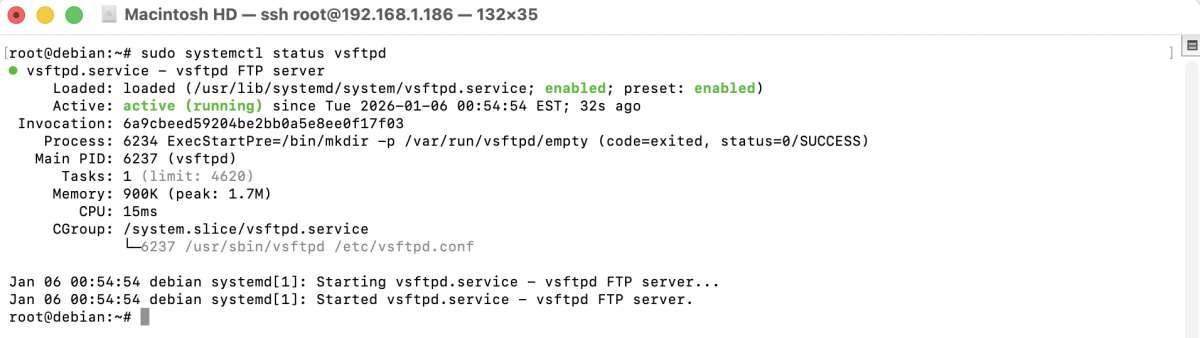
Step 3 : After the installation is complete, verify that the vsftpd service is running.
Step 4 : Disable Anonymous FTP Access and Configure vsftpd
Open the vsftpd configuration file:
Update or ensure the following settings are configured as shown below:
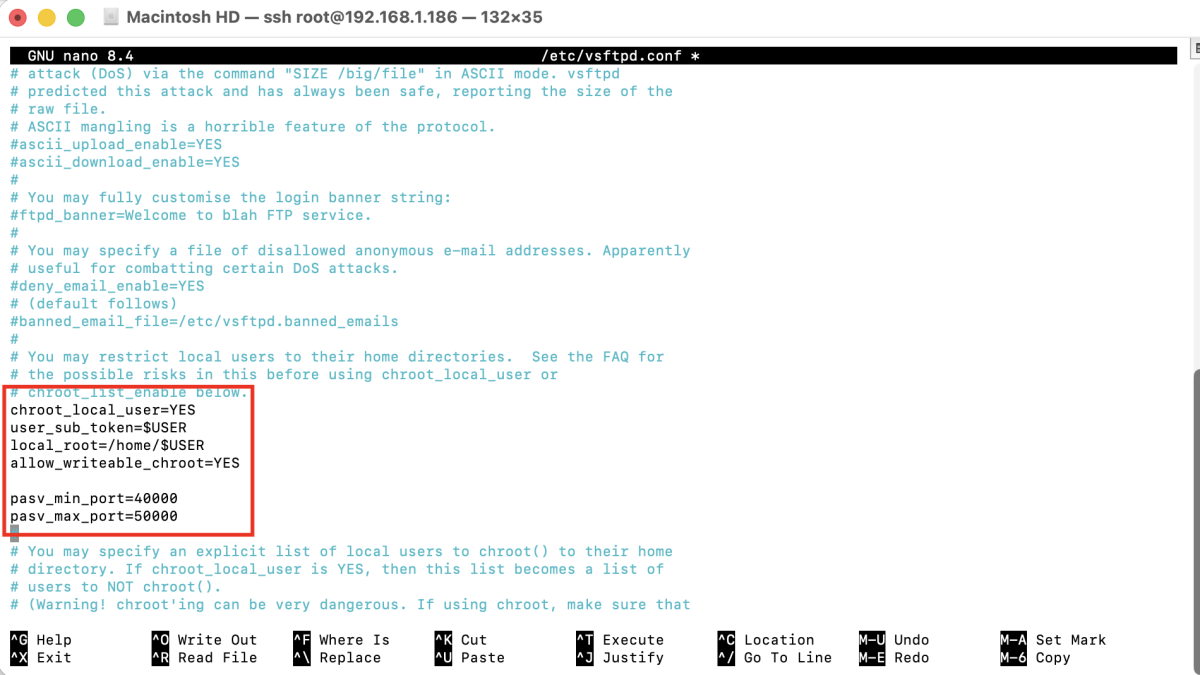
Save and exit the file.
Step 5 : Restart the vsftpd service to apply the configuration changes.

Step 6 : Create a new user for FTP access.
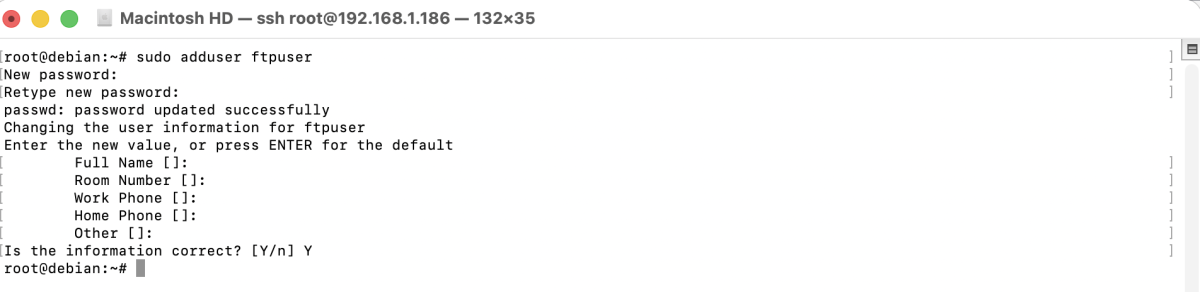
Step 7 : If UFW is enabled, allow FTP traffic.

Step 8 : Test the FTP Connection
- Open an FTP client such as FileZilla.
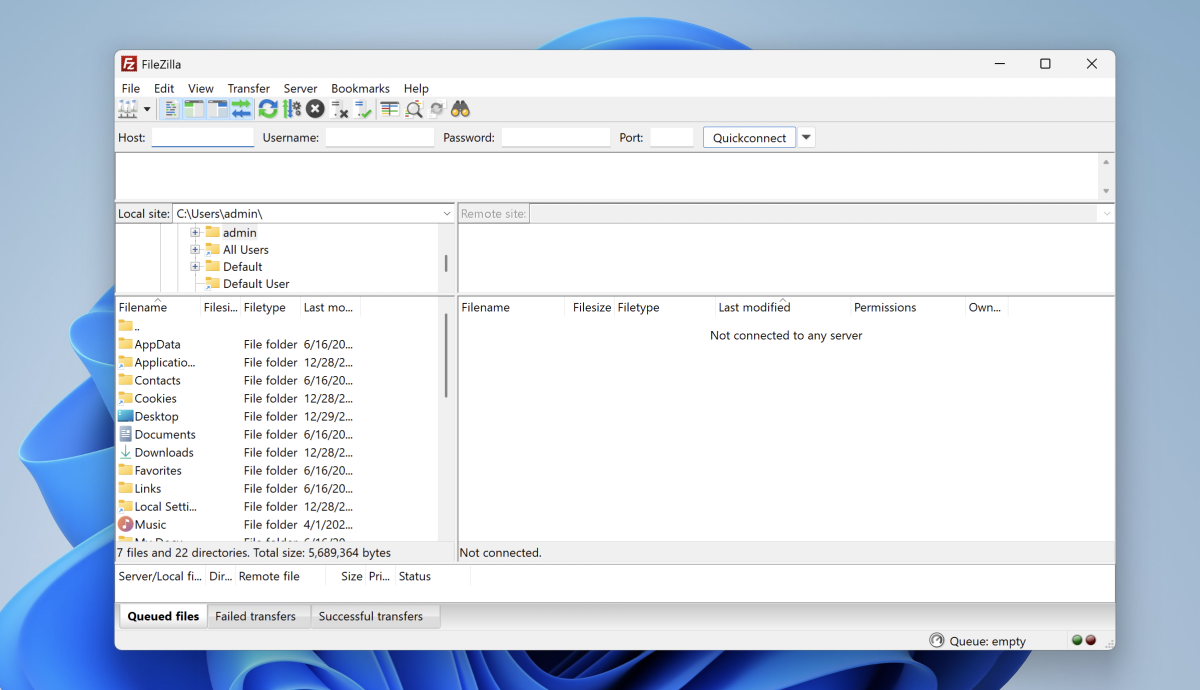
- Go to File → Site Manager → New Site.
- Enter the following information step by step:
- Protocol: FTP – File Transfer Protocol
- Encryption: Use explicit FTP over TLS if available (recommended)
- Host: Your server IP address or domain name
- Port: 21
- Logon Type: Normal
- Username:
ftpuser - Password: The password you created
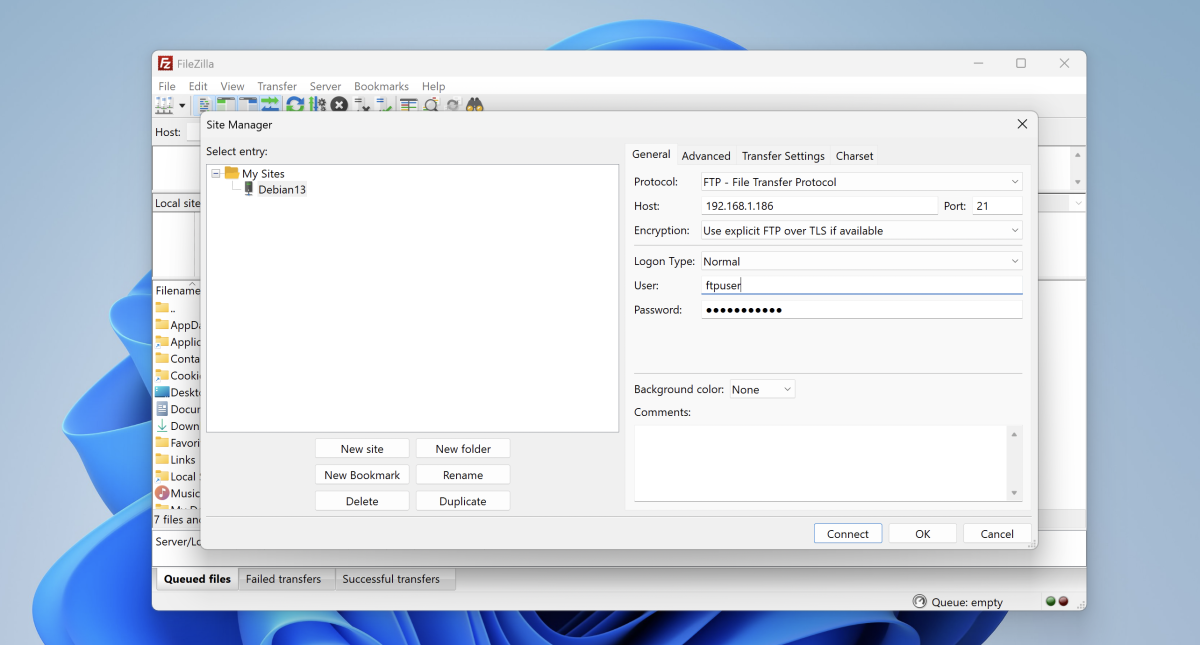
- Click Connect to establish the FTP connection.
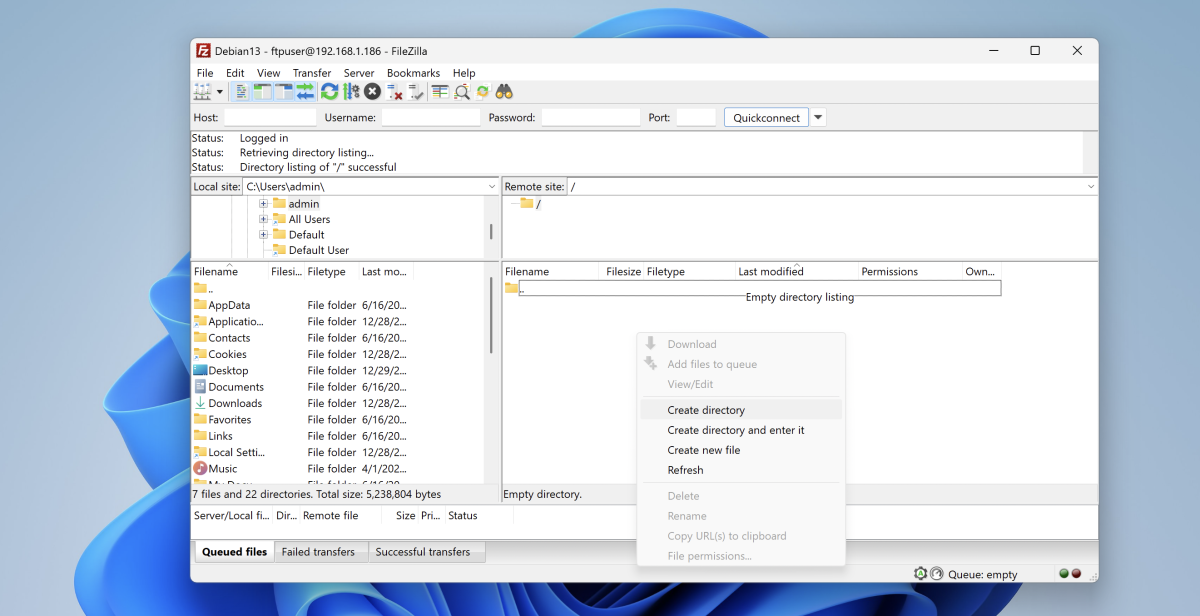
Congratulations! You have successfully installed and configured the vsftpd FTP server on Debian 13.