To Install a Remote Desktop GUI on Debian 13, follow the steps below.
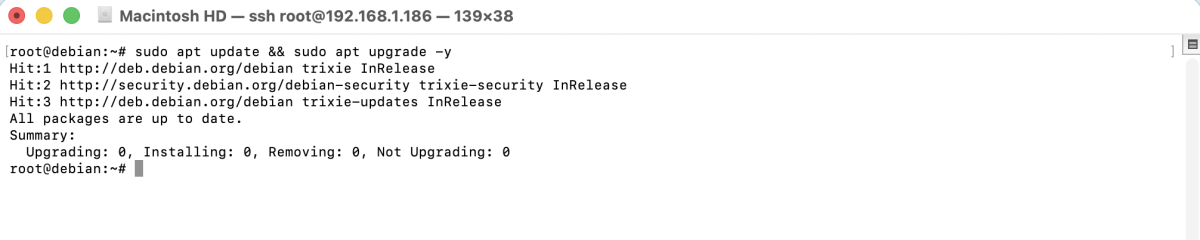
Step 1 : Update your system to ensure all packages are current.
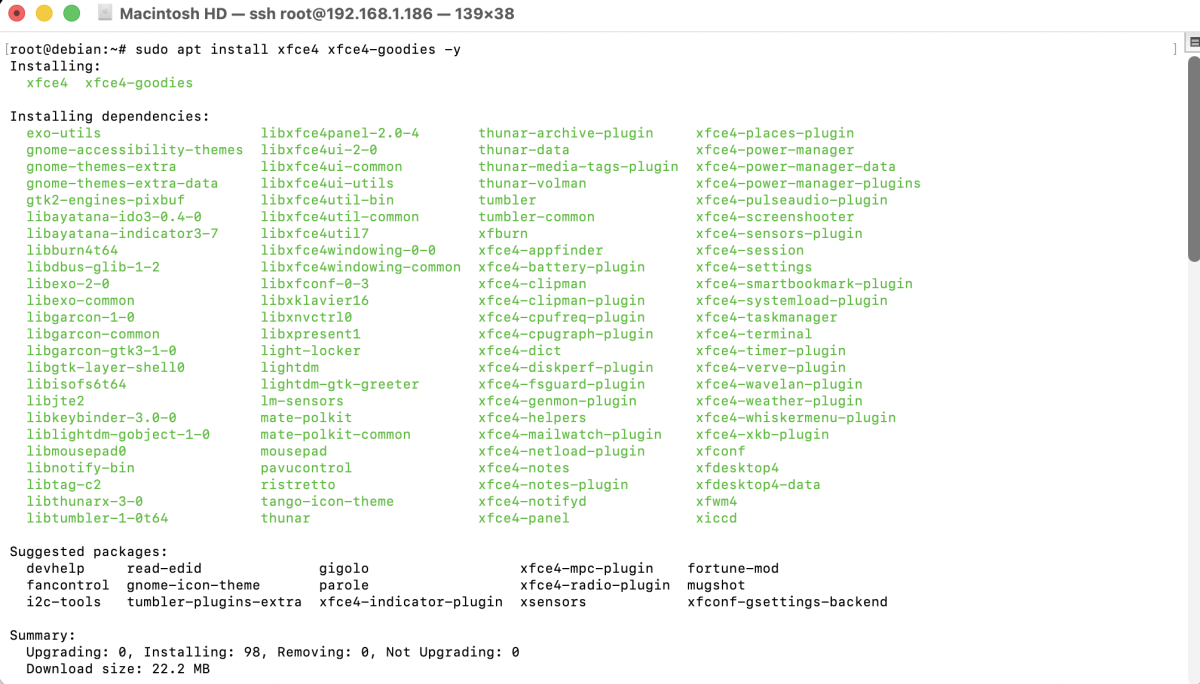
Step 2 : Install the lightweight XFCE4 desktop environment and useful extras.
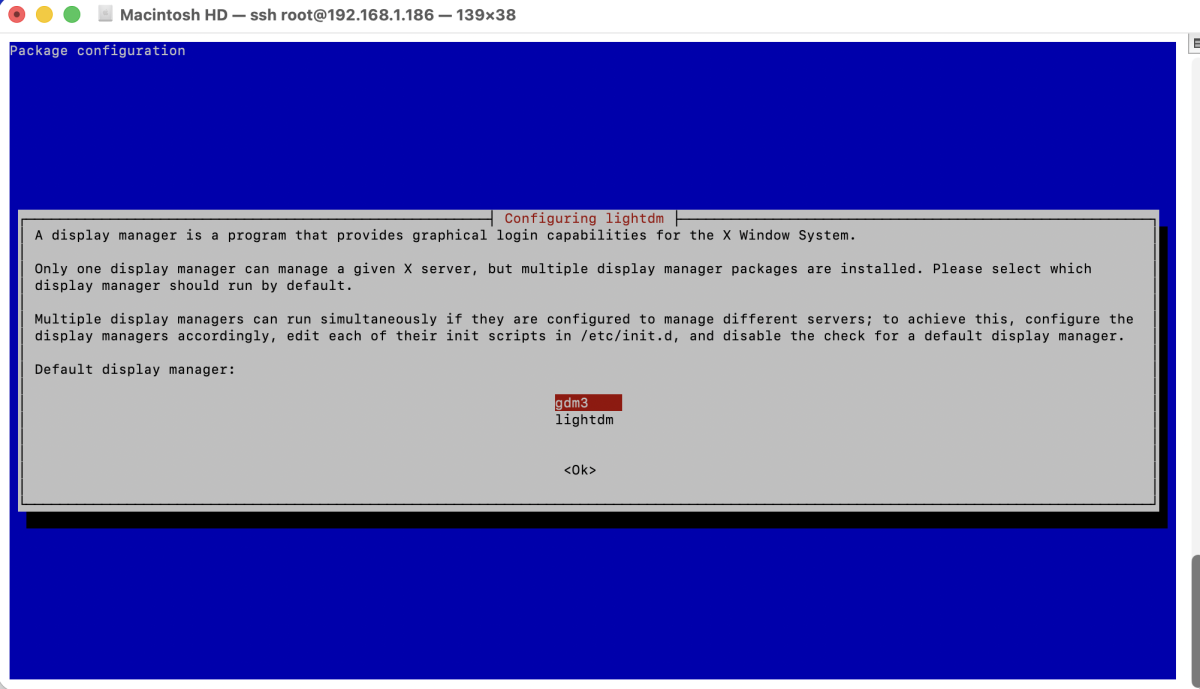
- During installation, when prompted to choose a display manager: Select GDM3
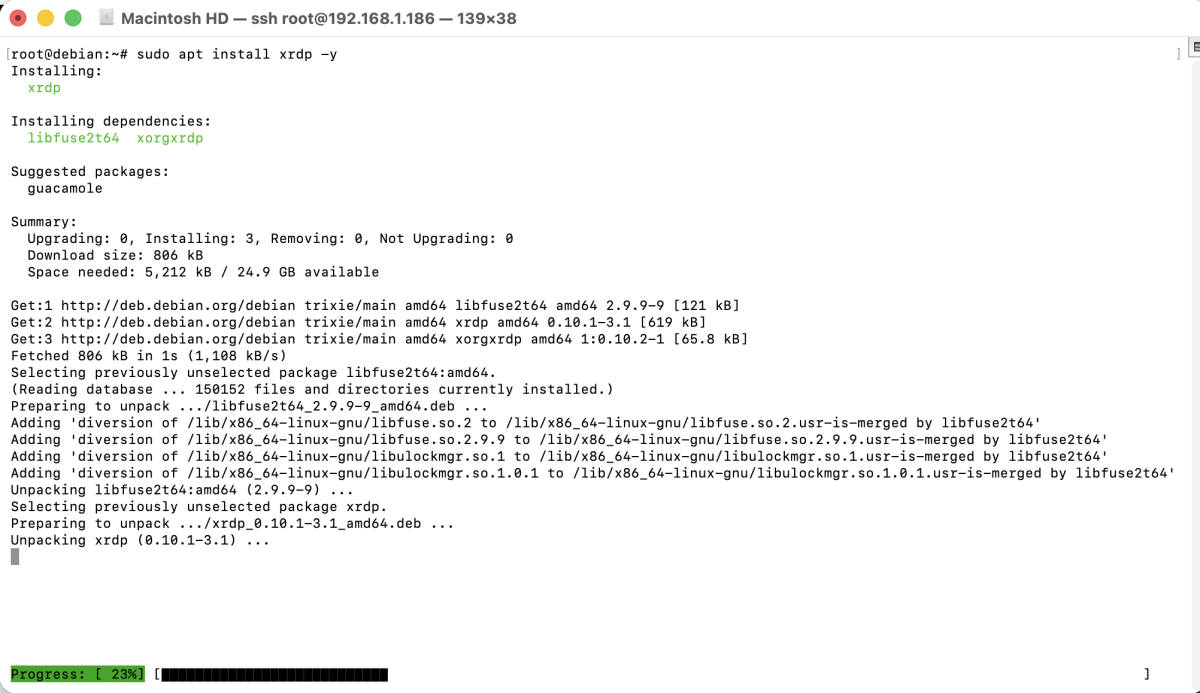
Step 3 : Install the XRDP server to enable Remote Desktop connections.
Step 4 : Verify that the XRDP service is running.
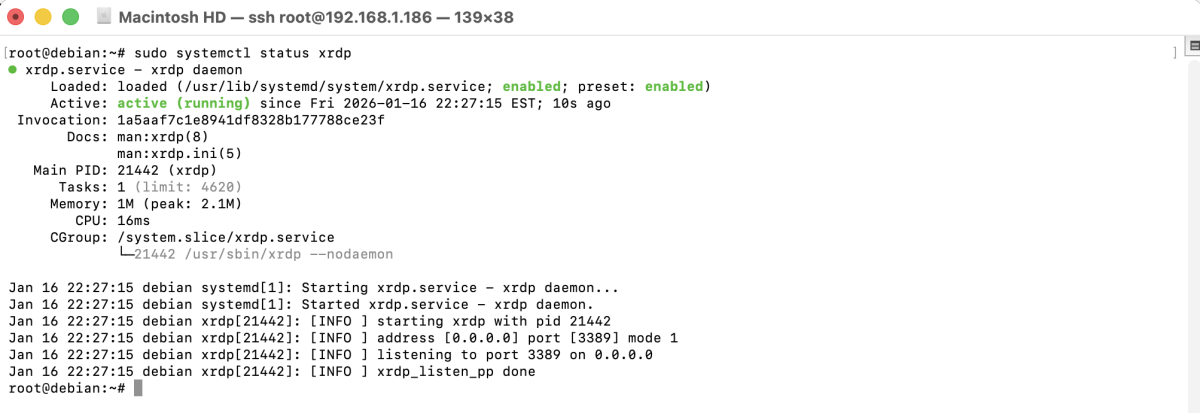
If it is not active, start it with:
Step 5 : Edit the XRDP configuration file if needed.
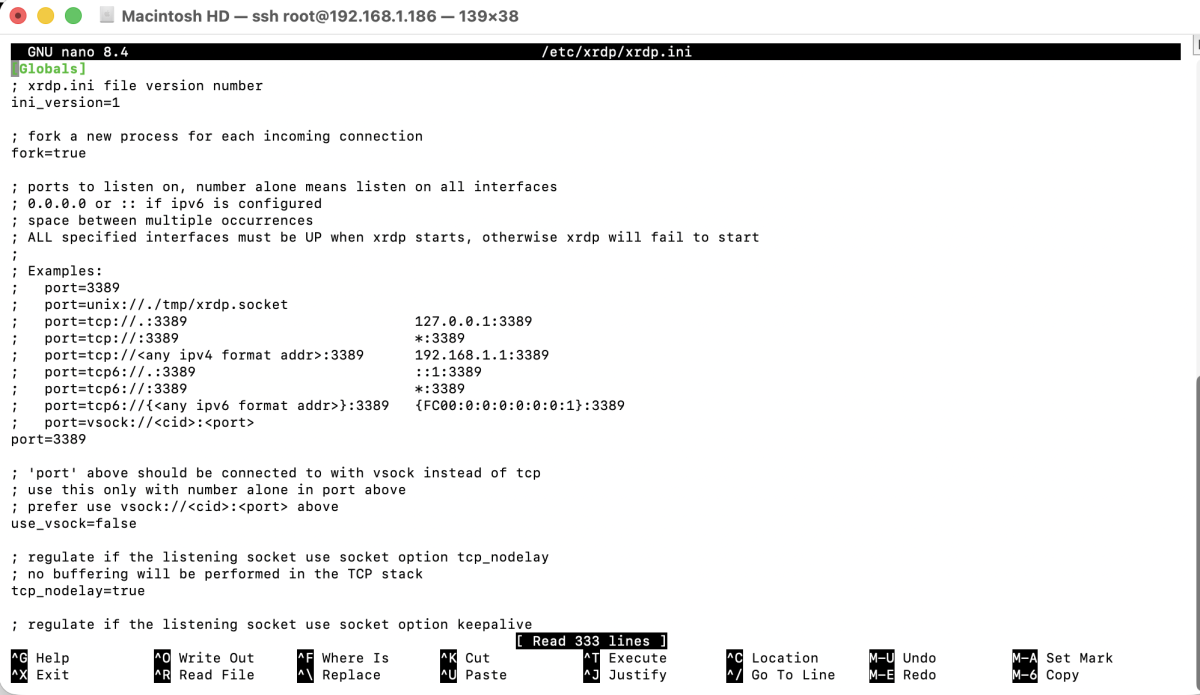
In most cases, the default configuration works well and does not require changes.
Step 6 : Configure XRDP to start the XFCE session.

Step 7 : Restart XRDP to apply all changes.

Step 8 : If UFW firewall is enabled, allow Remote Desktop traffic.

Step 9 : Connect via Remote Desktop
- Open Remote Desktop Connection (Windows) or any RDP client
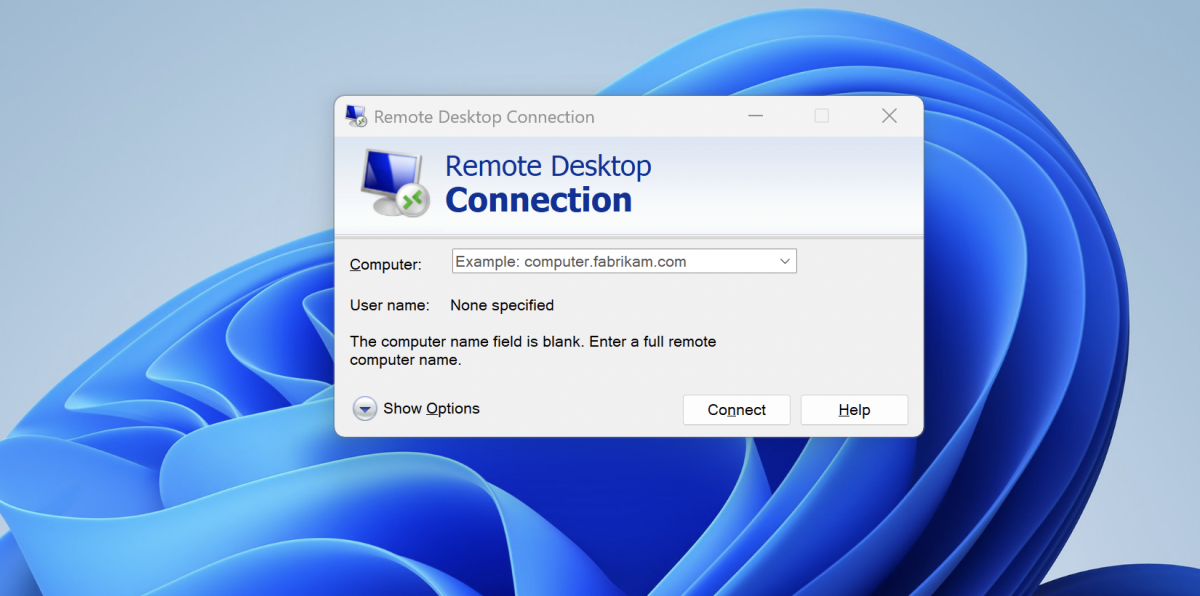
- Enter your server IP address
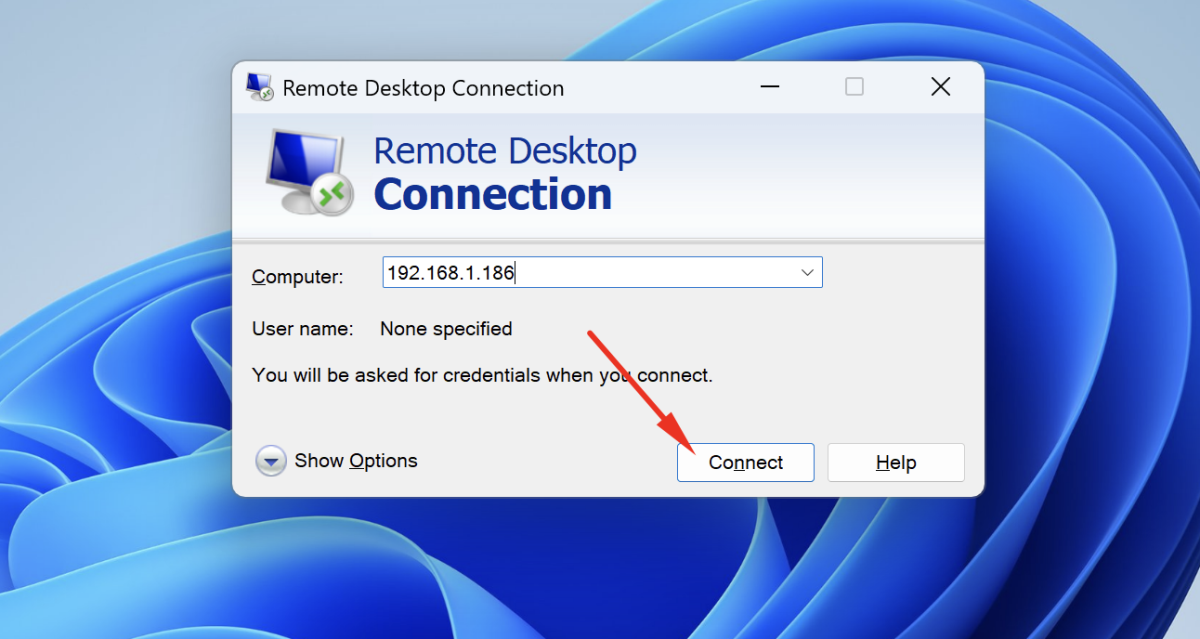
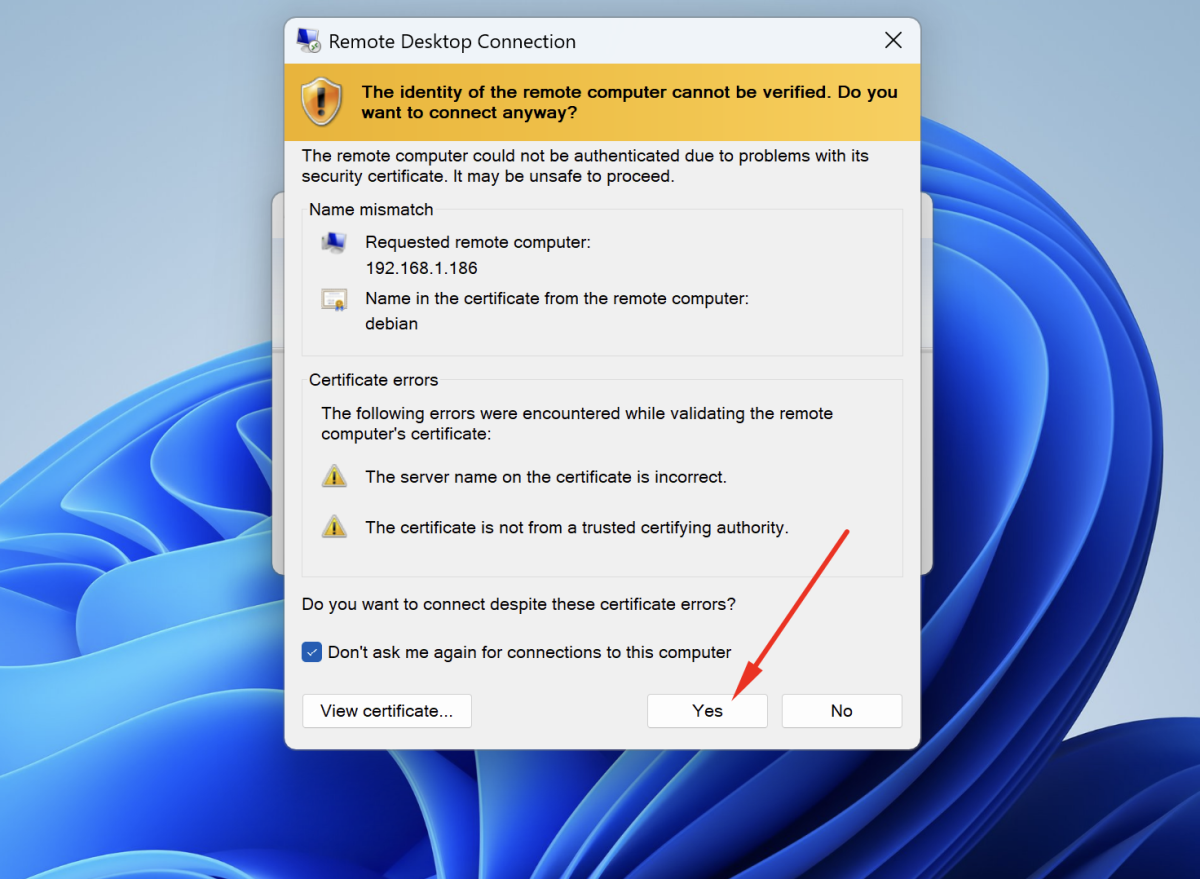
- If you see a certificate warning, simply click OK or Continue to proceed. This is normal for self-signed certificates.
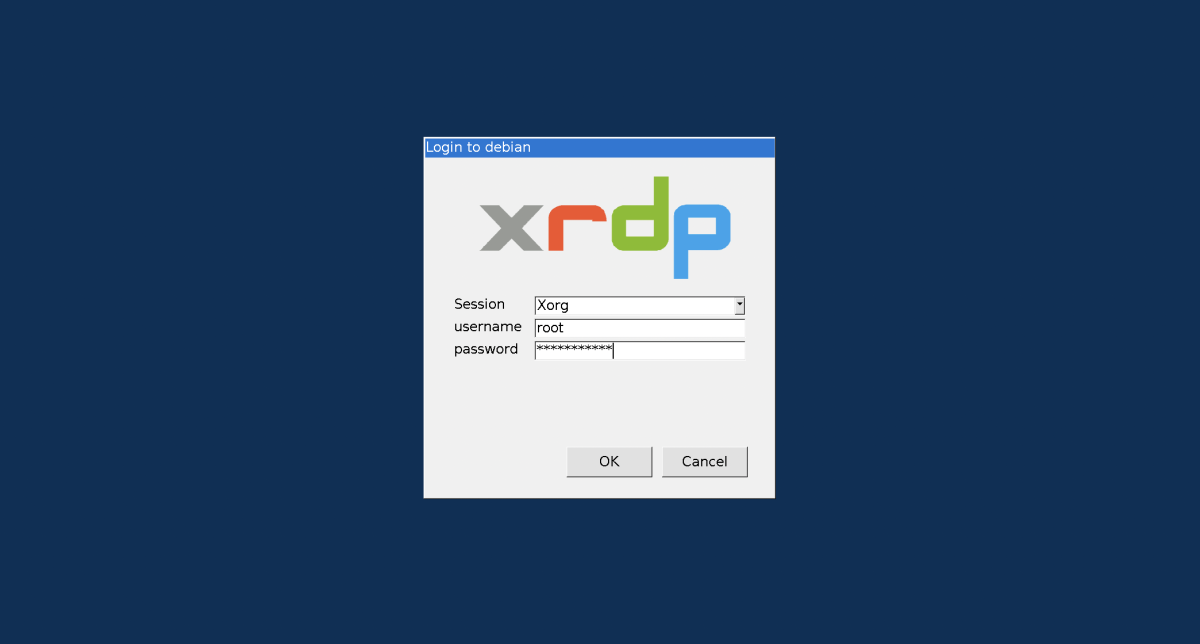
- Log in using your Debian username and password
- Once connected, you should see the XFCE desktop environment.
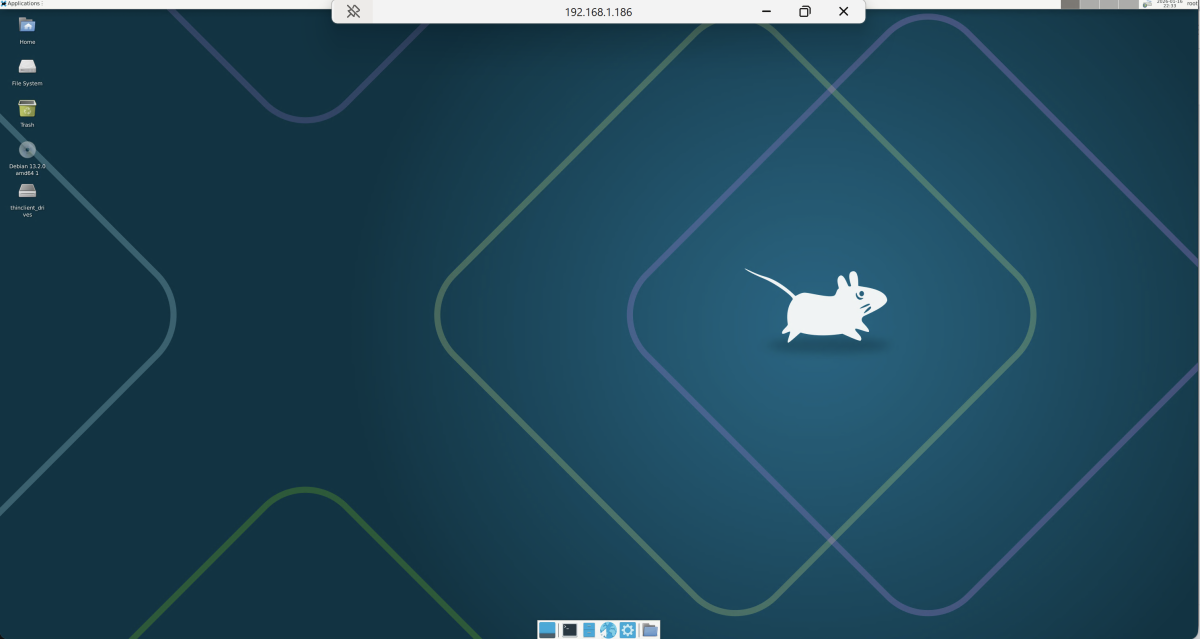
Congratulations! You have successfully configured Remote Desktop GUI on Debian 13.