To install AlmaLinux 8, you need to boot the system using a DVD or a bootable USB installer and follow the installation steps provided by the installer.
Step 1 : Insert the AlmaLinux 8 DVD or bootable USB, then start or restart the computer and boot from the installation media.
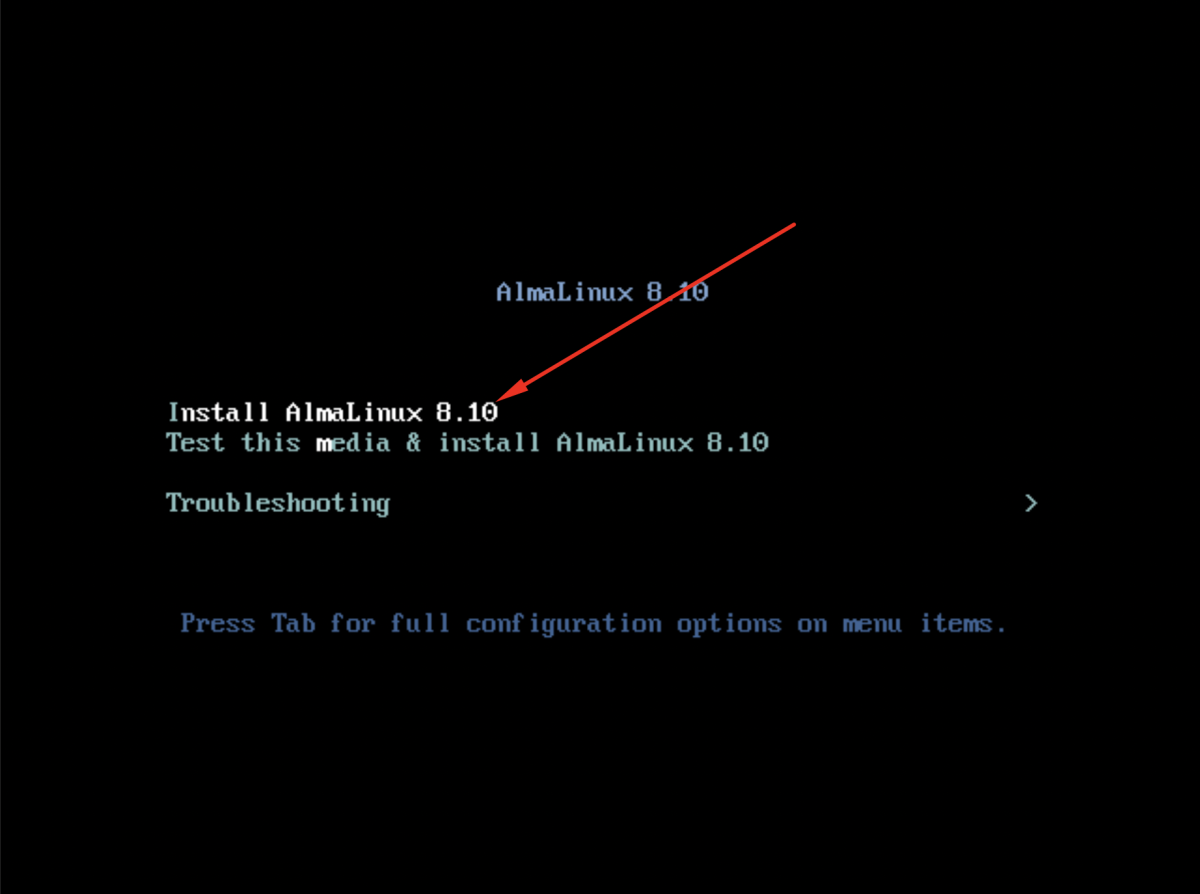
Step 2 : At the boot menu, choose Install AlmaLinux 8 and press Enter.
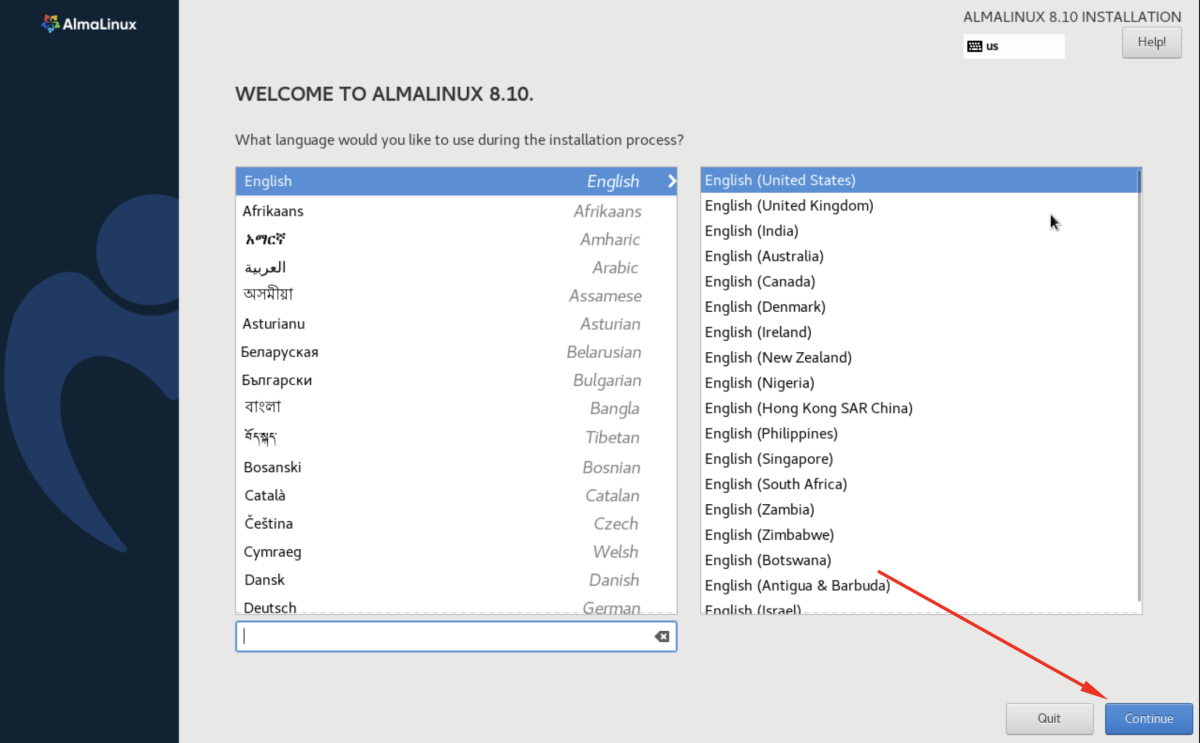
Step 3 : Choose your preferred language for the installation process, then click Continue.
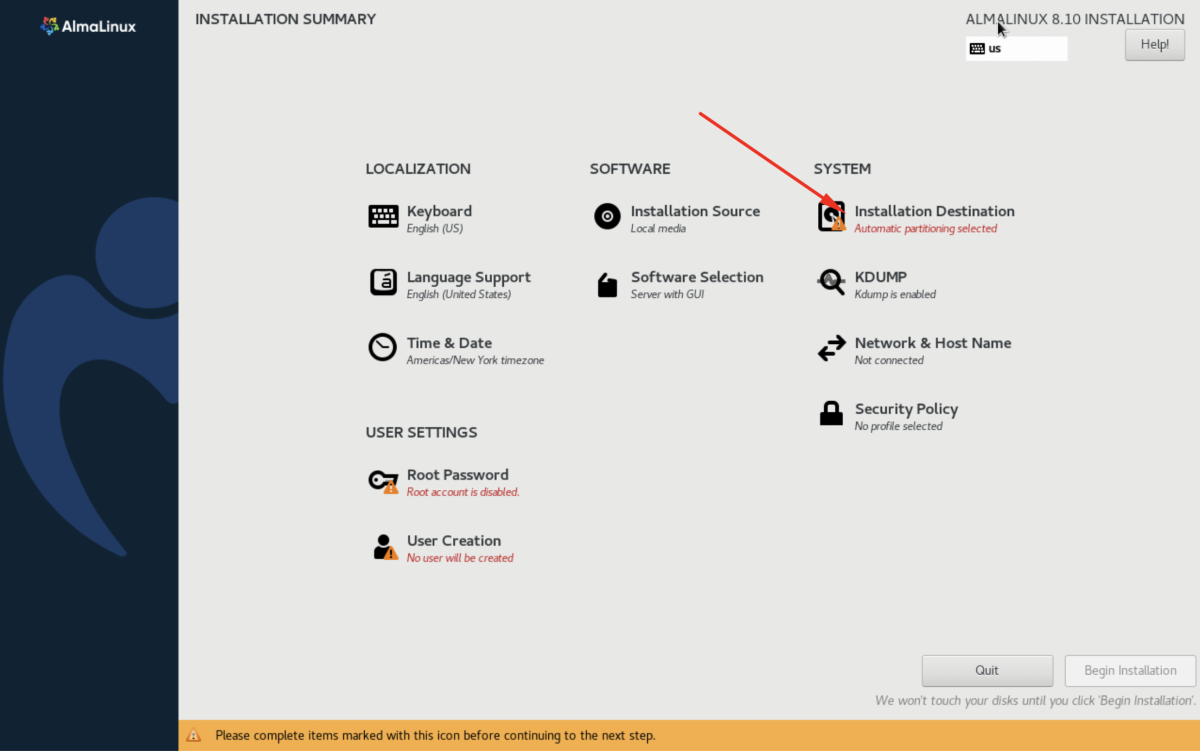
Step 4 : On the Installation Summary screen, click Installation Destination and select the disk where AlmaLinux 8 will be installed.
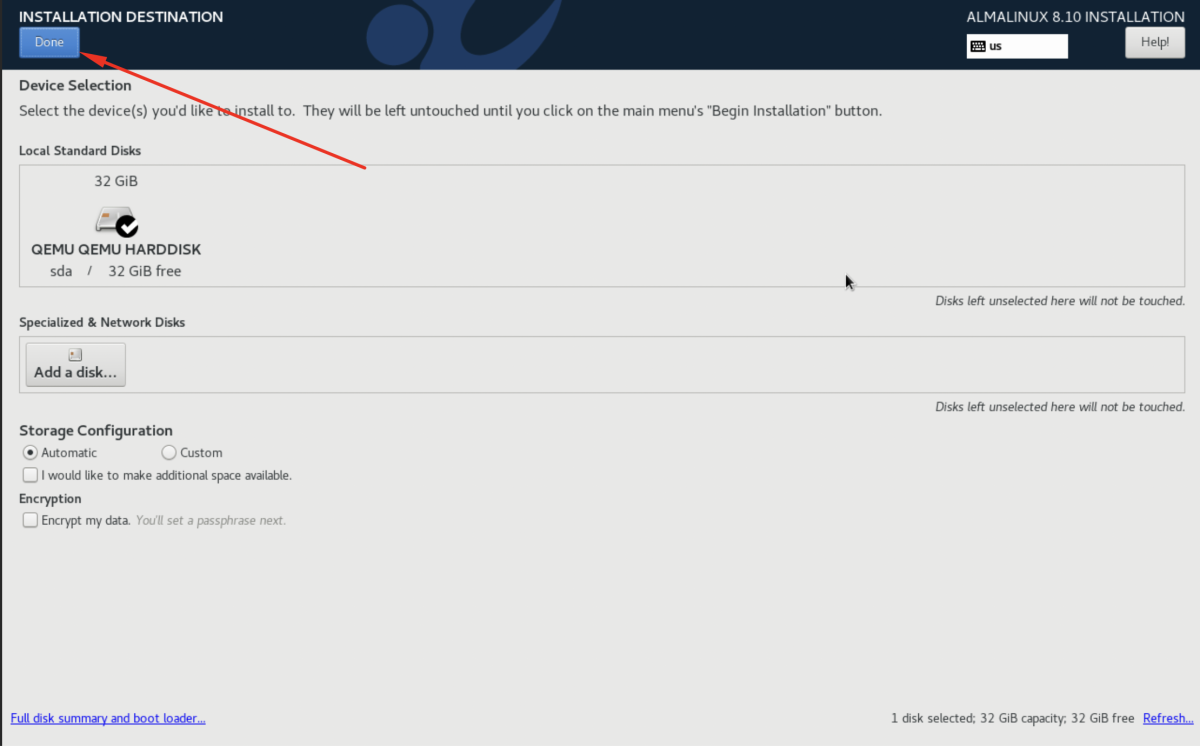
Step 5 : If everything is correct, click Done to return to the Installation Summary screen.
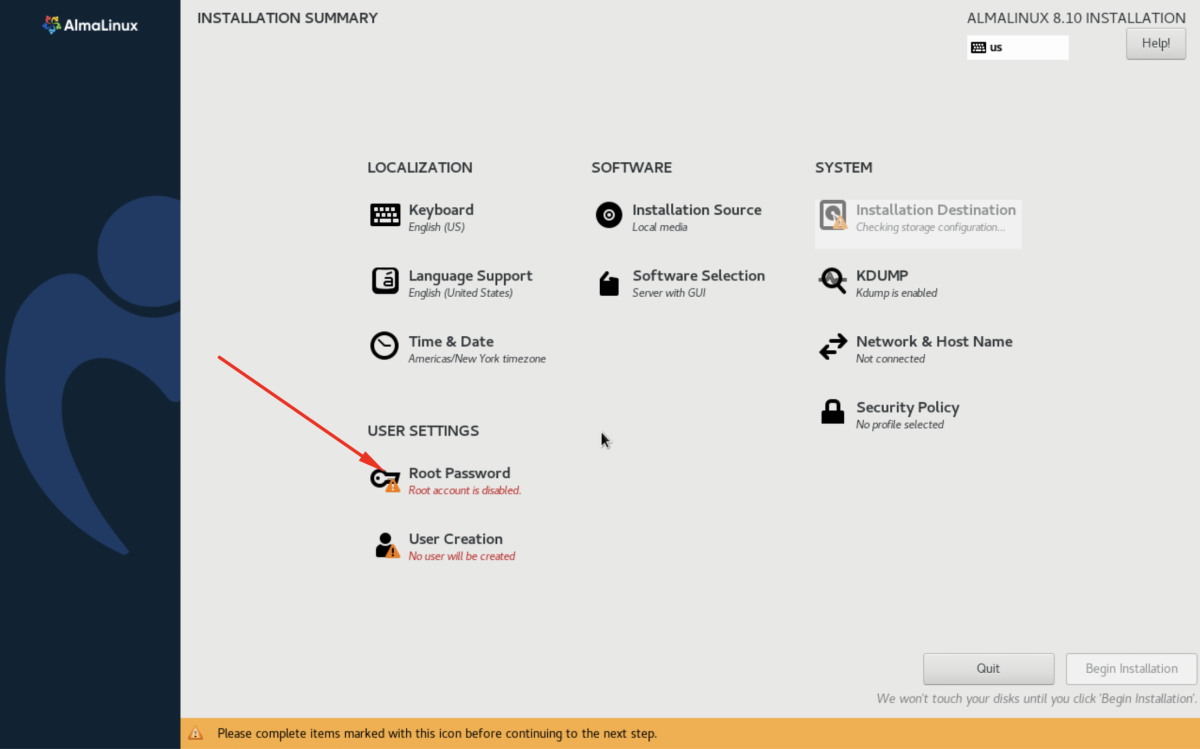
Step 6 : On the Installation Summary screen, click Root Password.
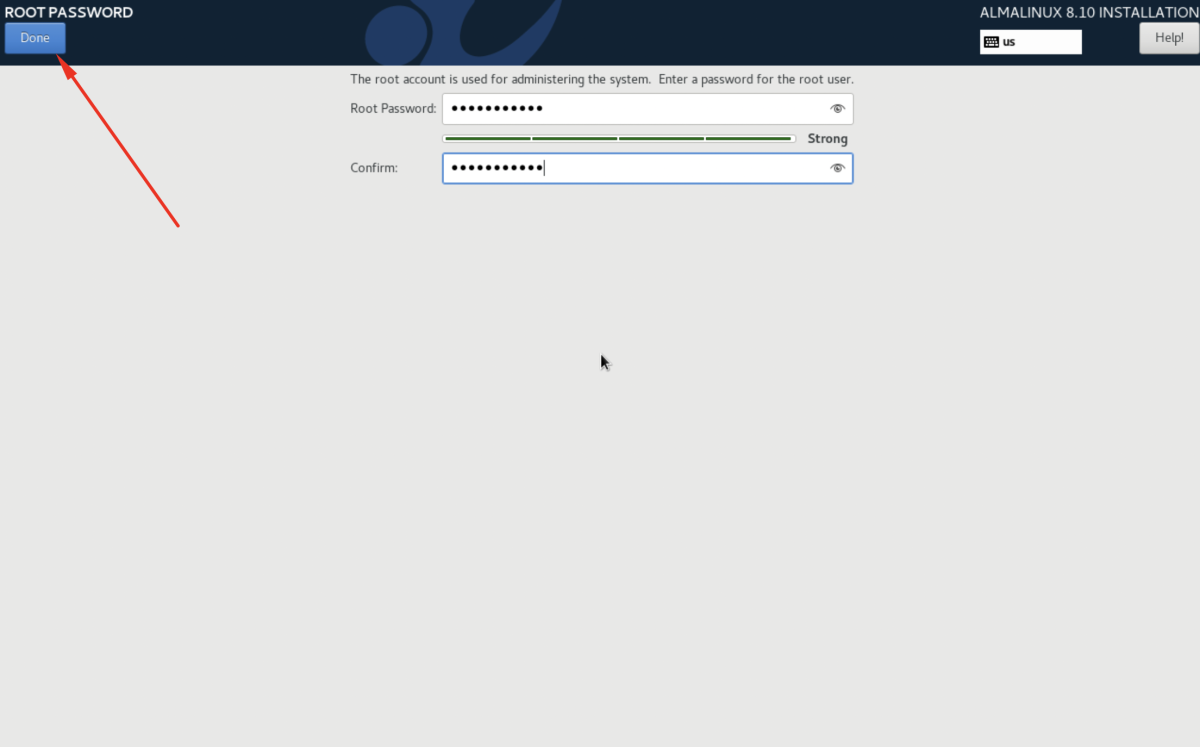
Step 7 : Enter the root password, confirm it, then click Done to return to the Installation Summary screen.
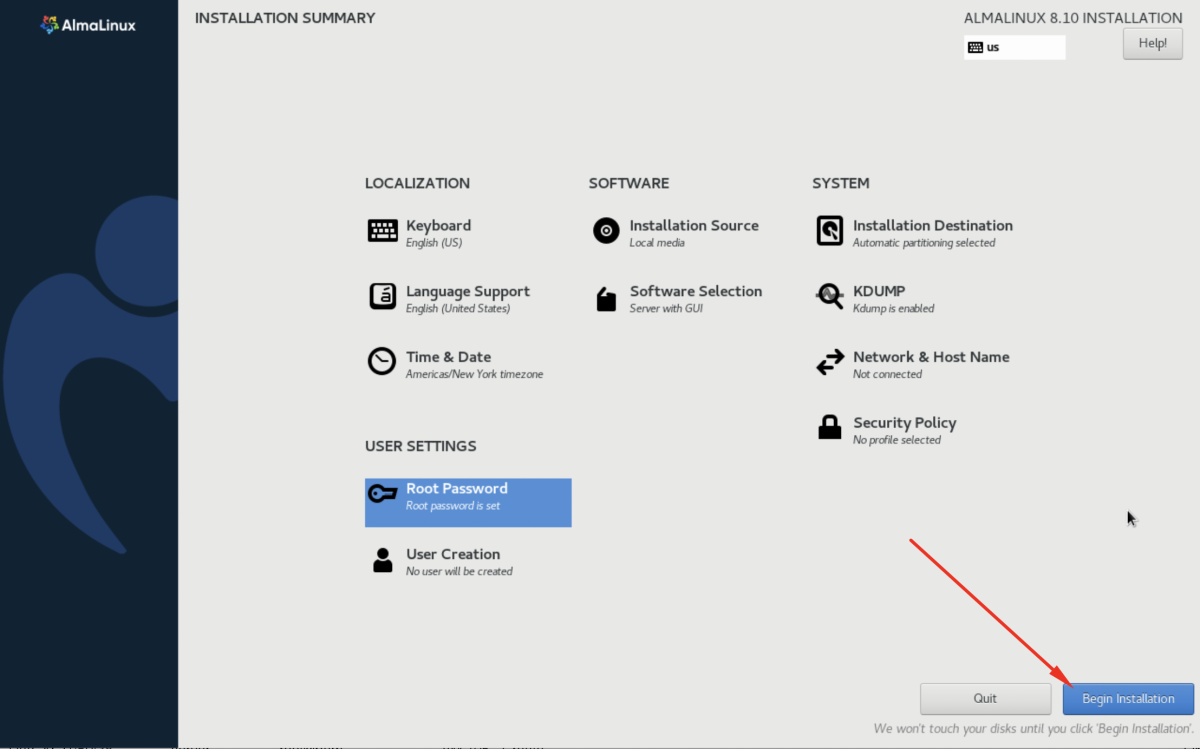
Step 8 : Click Begin Installation to start the installation process.
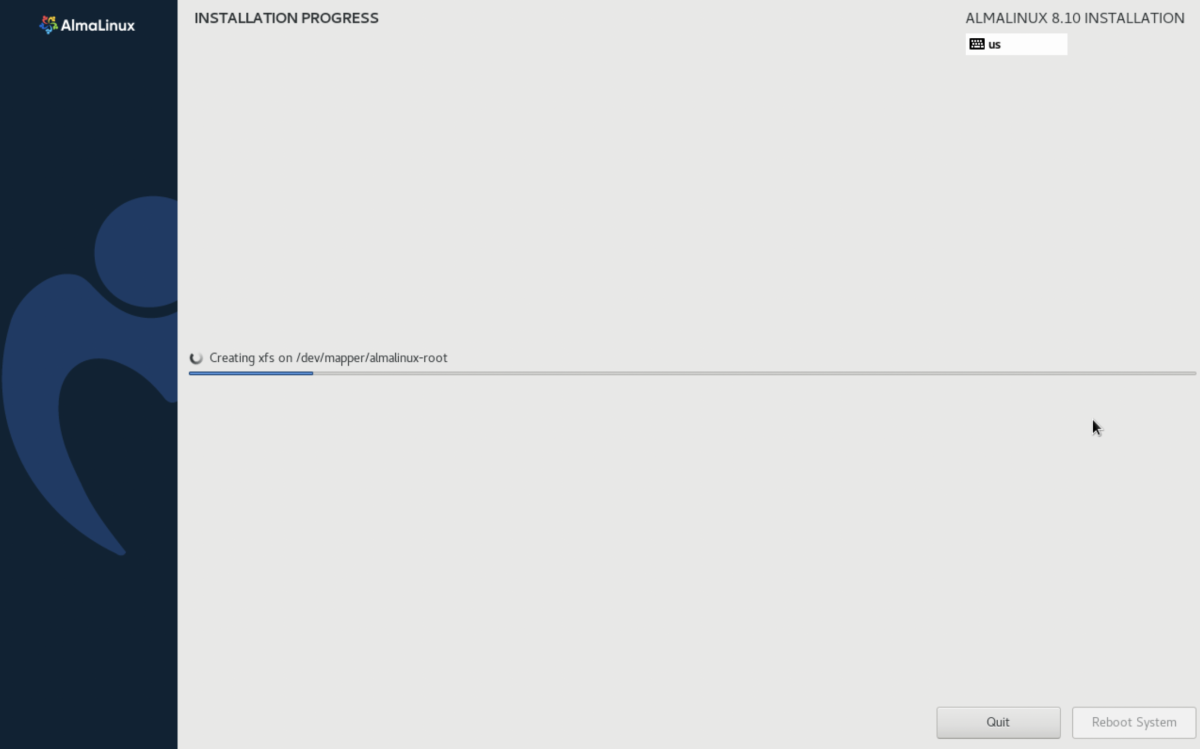
Step 9 : Wait until the system finishes installing AlmaLinux 8.
Step 10 : When the installation is complete, click Reboot System.
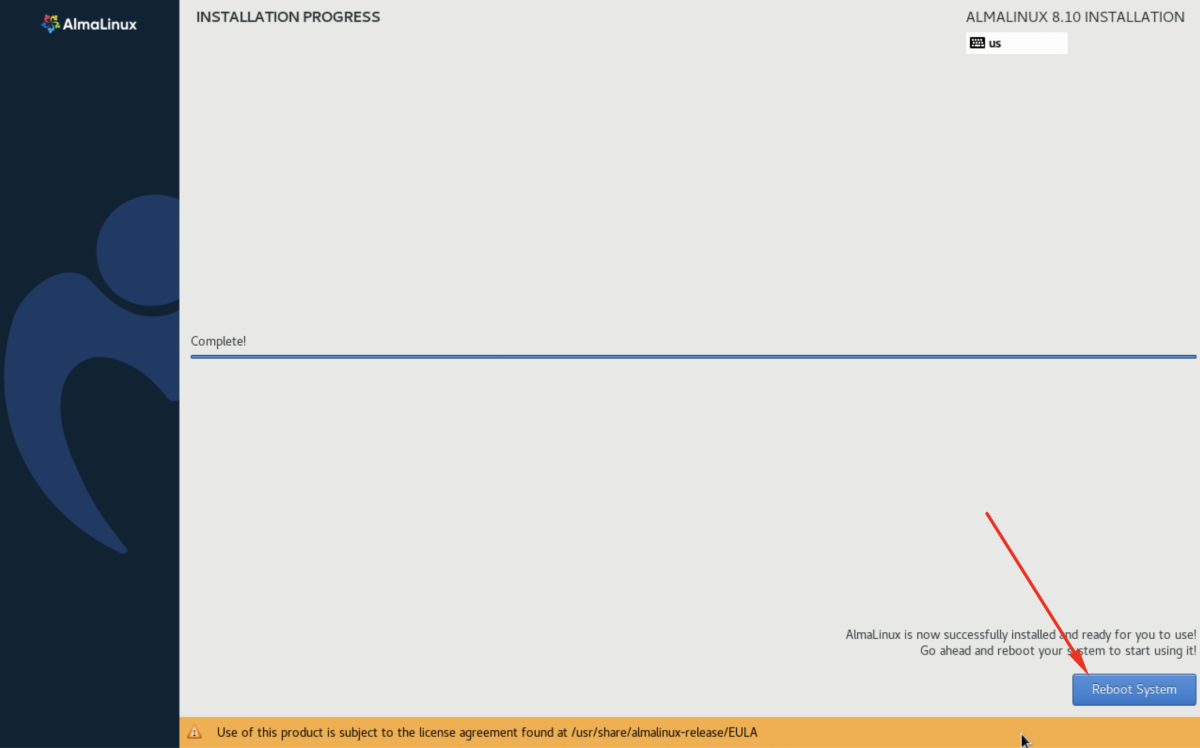
Step 11 : After the system restarts, log in to the system.
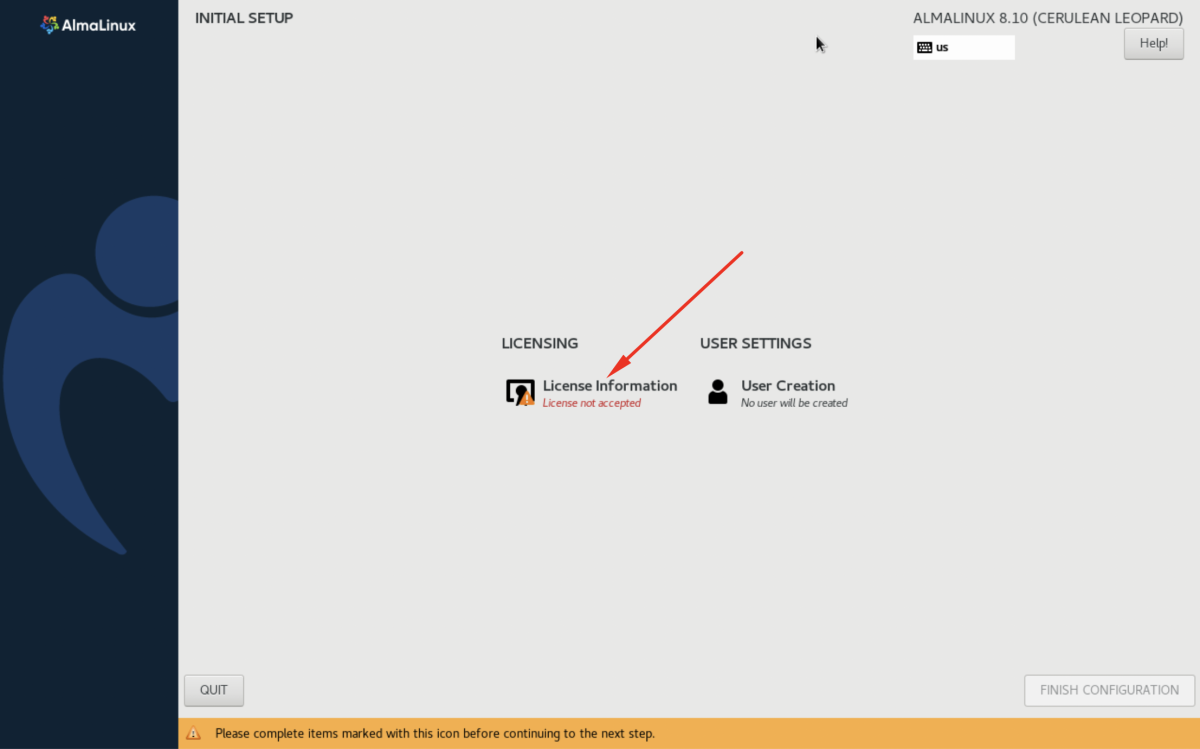
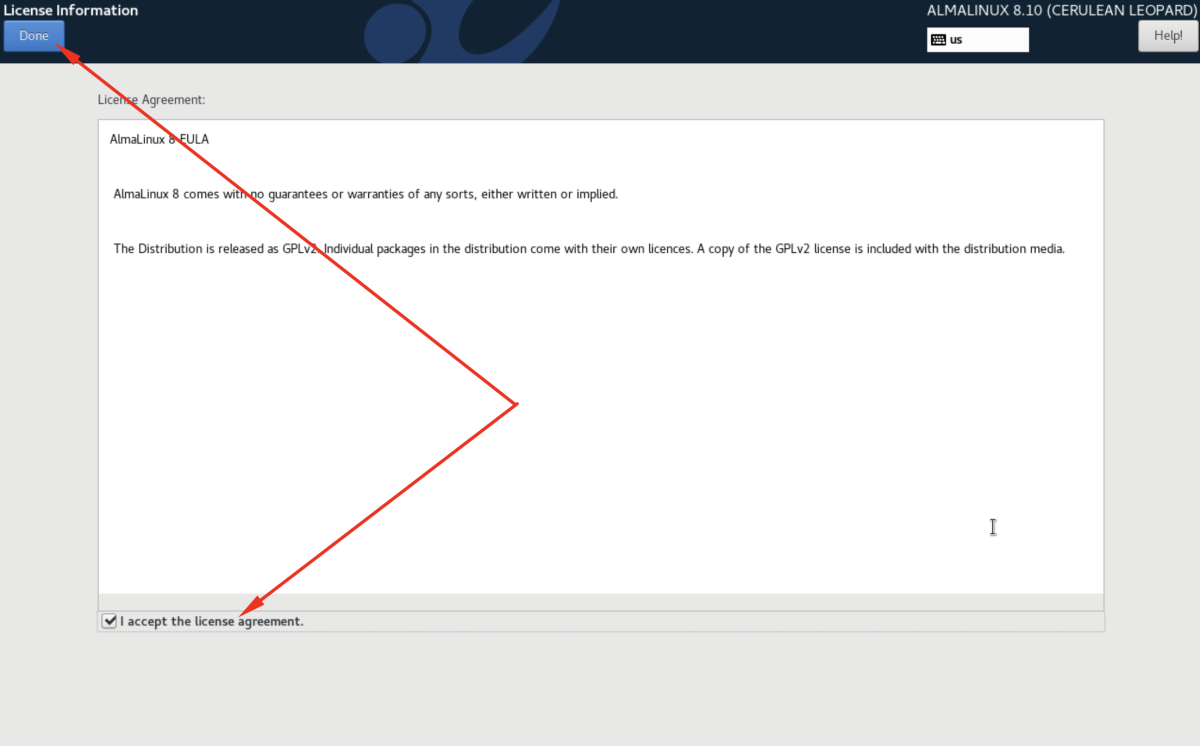
Step 12 : Click License Information, accept the License Agreement, and click Done.
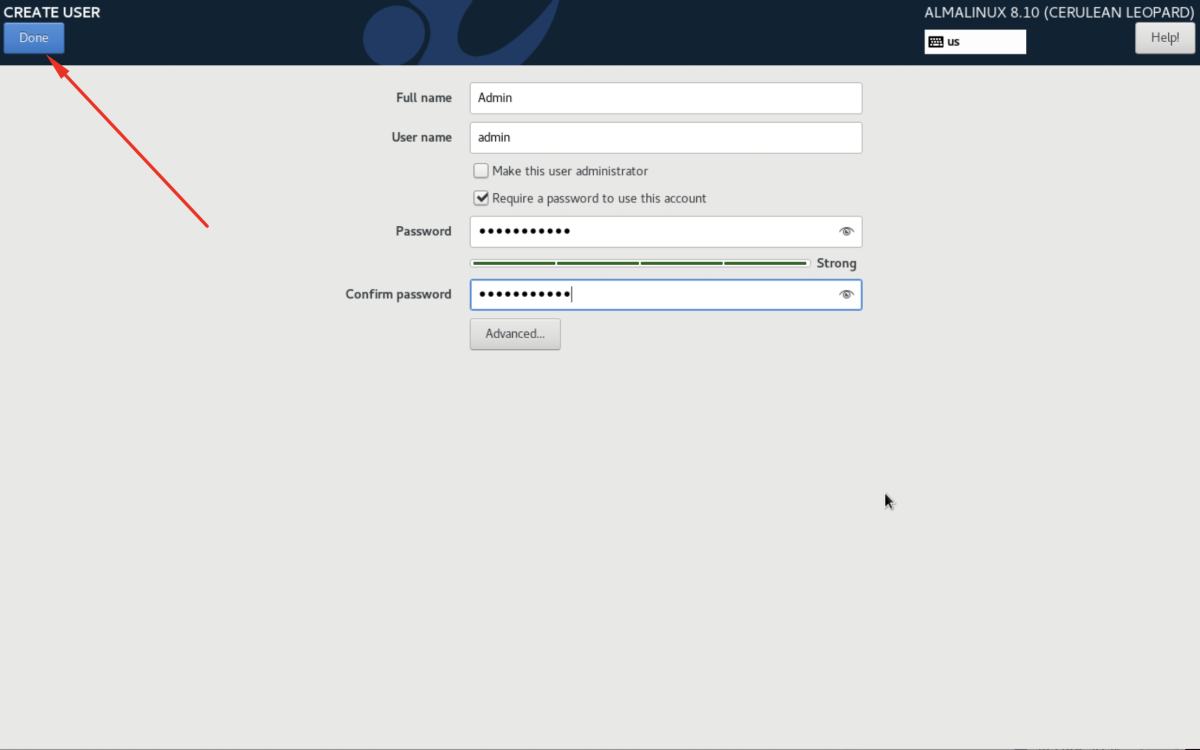
Step 13 : Click User Creation
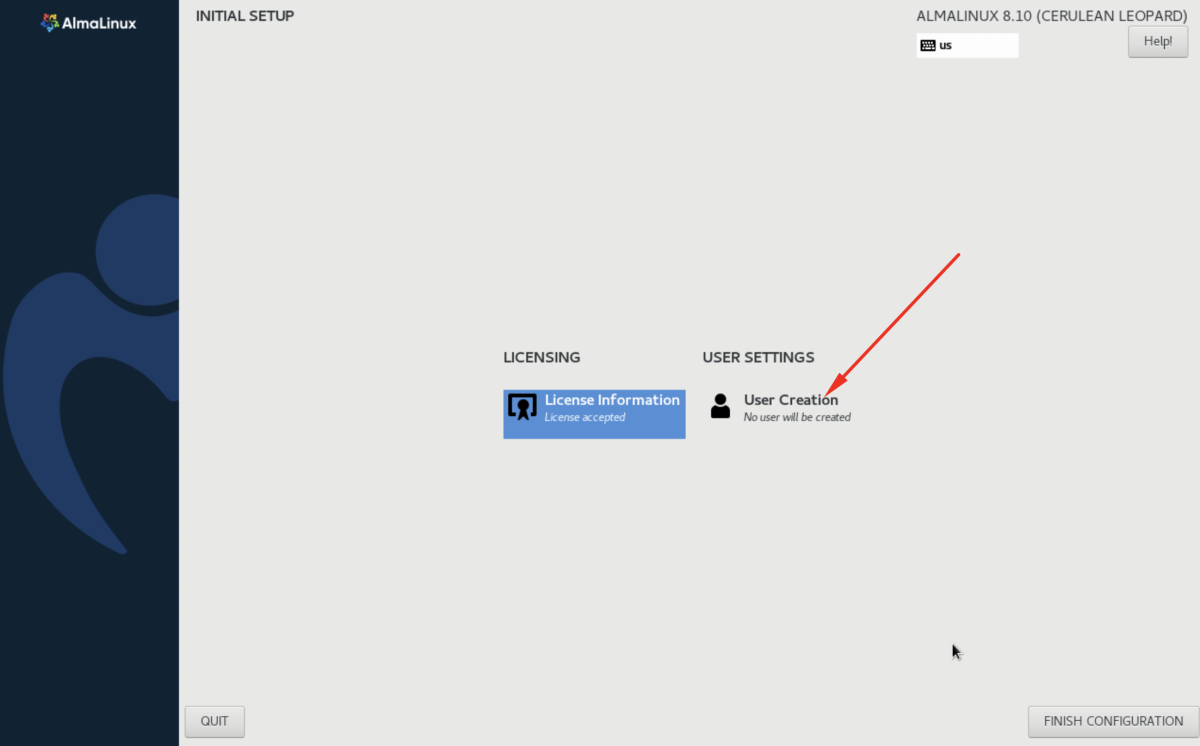
- Create a new user account, and set the user password.
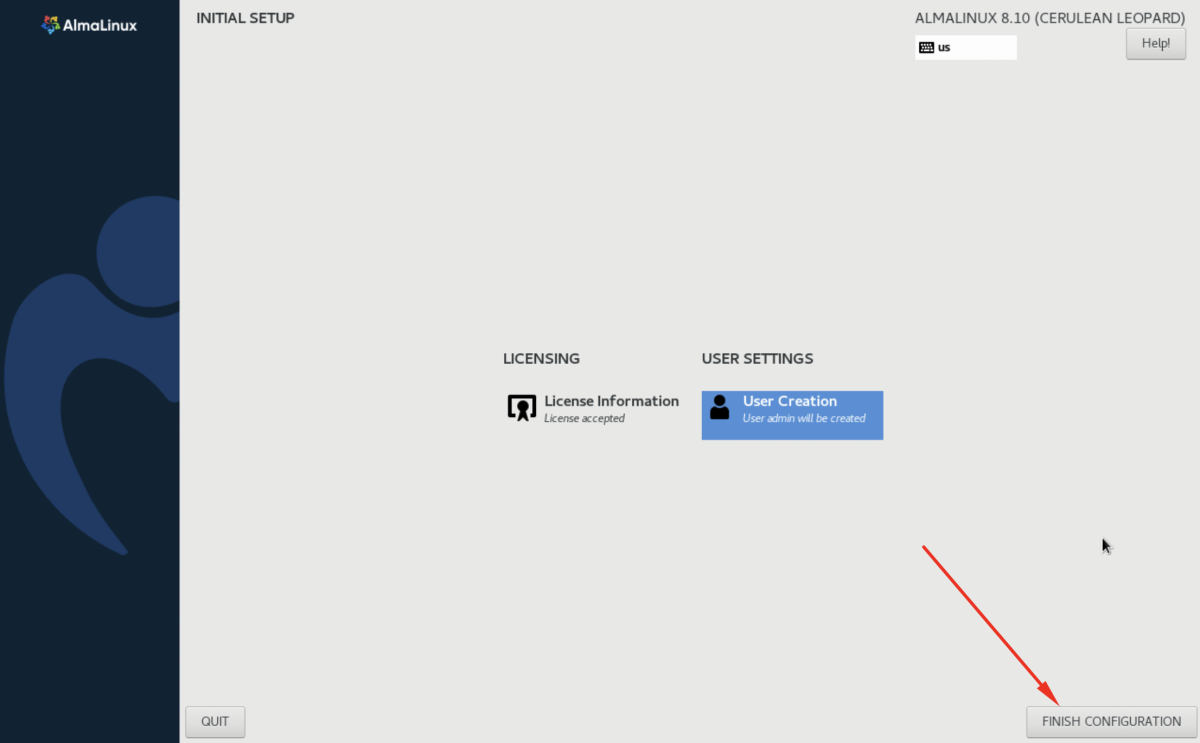
Step 14 : Click Finish Configuration to complete the setup.
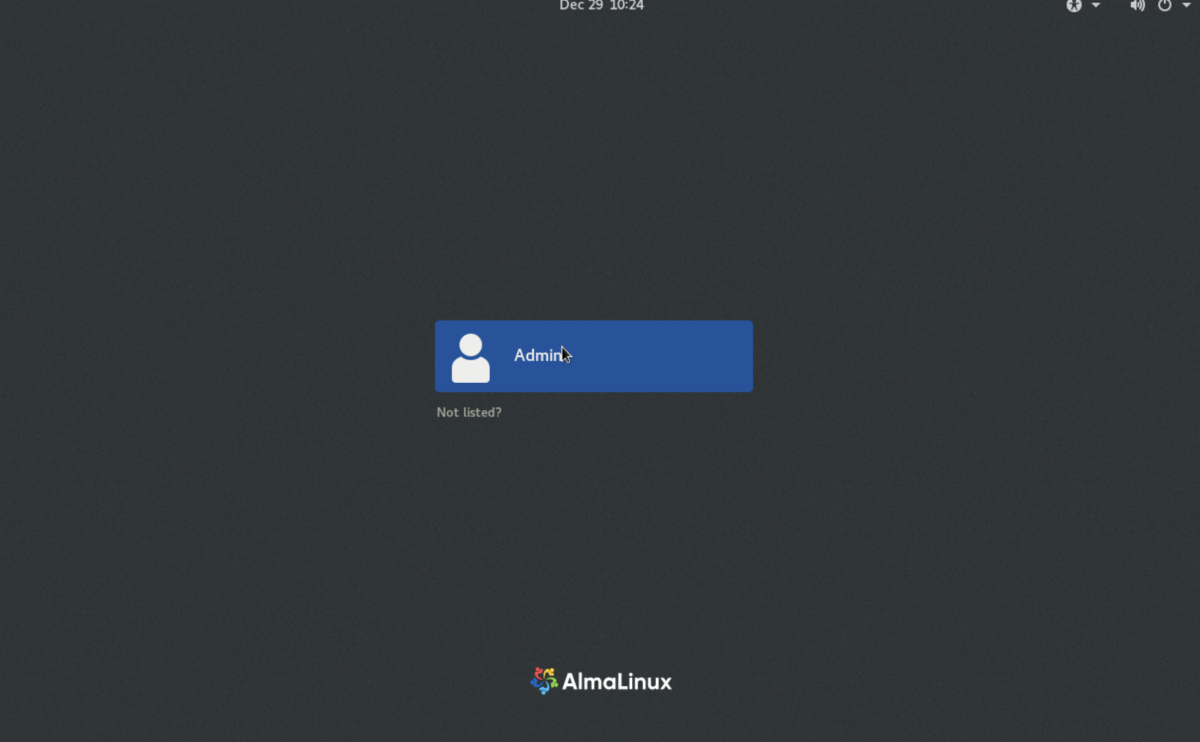
Step 15 : Log in using the created user account.
Step 16 : The AlmaLinux 8 installation is now complete.
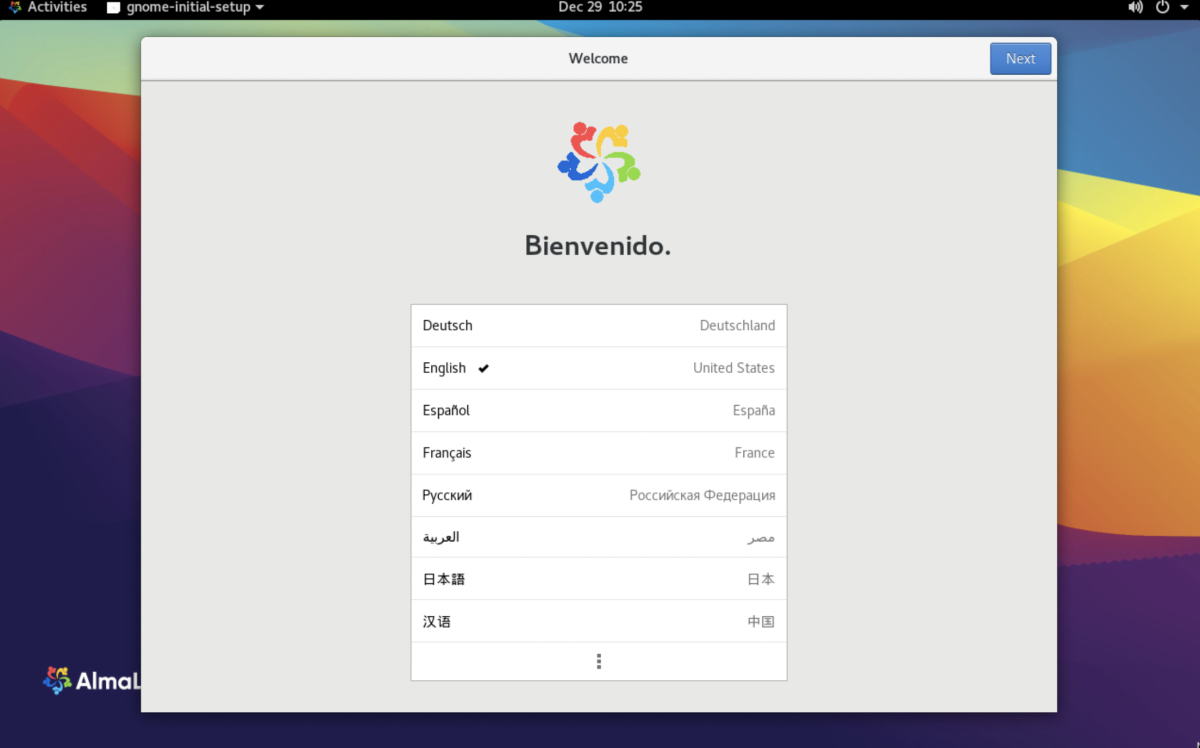
Congratulations, you have successfully installed AlmaLinux 8 on your system.